



 343
343
01. Visit the page http://www.cosmo-one.gr/en
02. Select “LOGIN”.
03. Click on “LOGIN” at “Marketsite” and then select the button "LOGIN".
04. Enter the Username and Password and click "Sign In".
05. As soon as you log in, choose the application “sourceONE neo”, as it appears on the picture below…
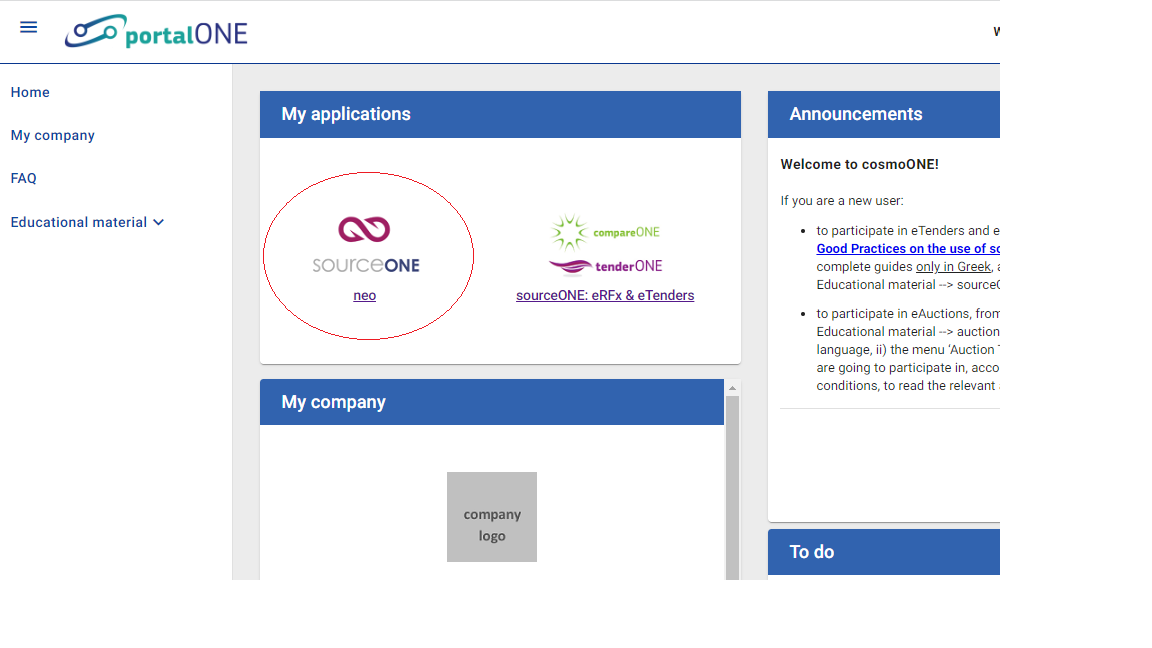
You will be transferred on the Home page of the platform.
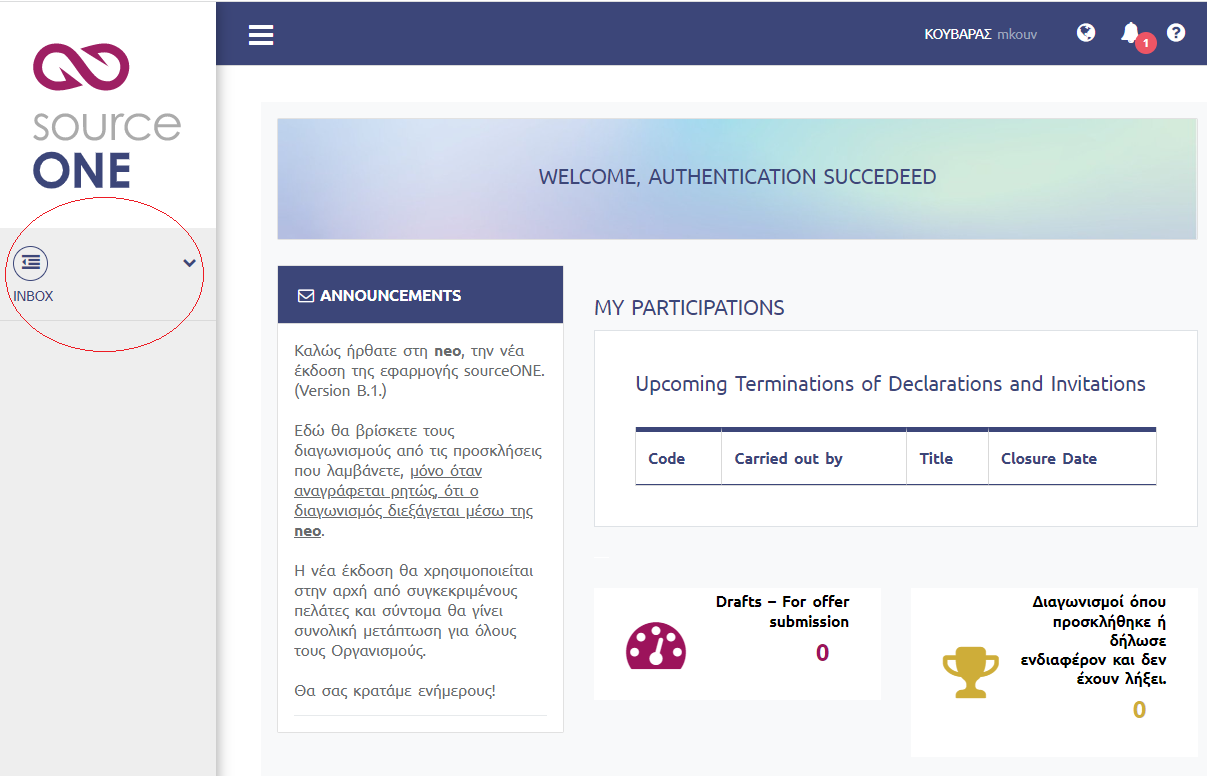
06. Select the "INBOX".
07. Click on "ALL TENDERS " and on the right-hand side of the screen by searching through the filters or directly at the bottom of the page, you can find the tender you are interested in. In case you are familiar with the tender reference number, use the filter ‘Title / No. Reference’ to search for it and if you find it, check the closing date and time for submission. In order to access the tender, click directly on the title of the tender under the column ‘NUMBER/TITLE/DESCRIPTION’.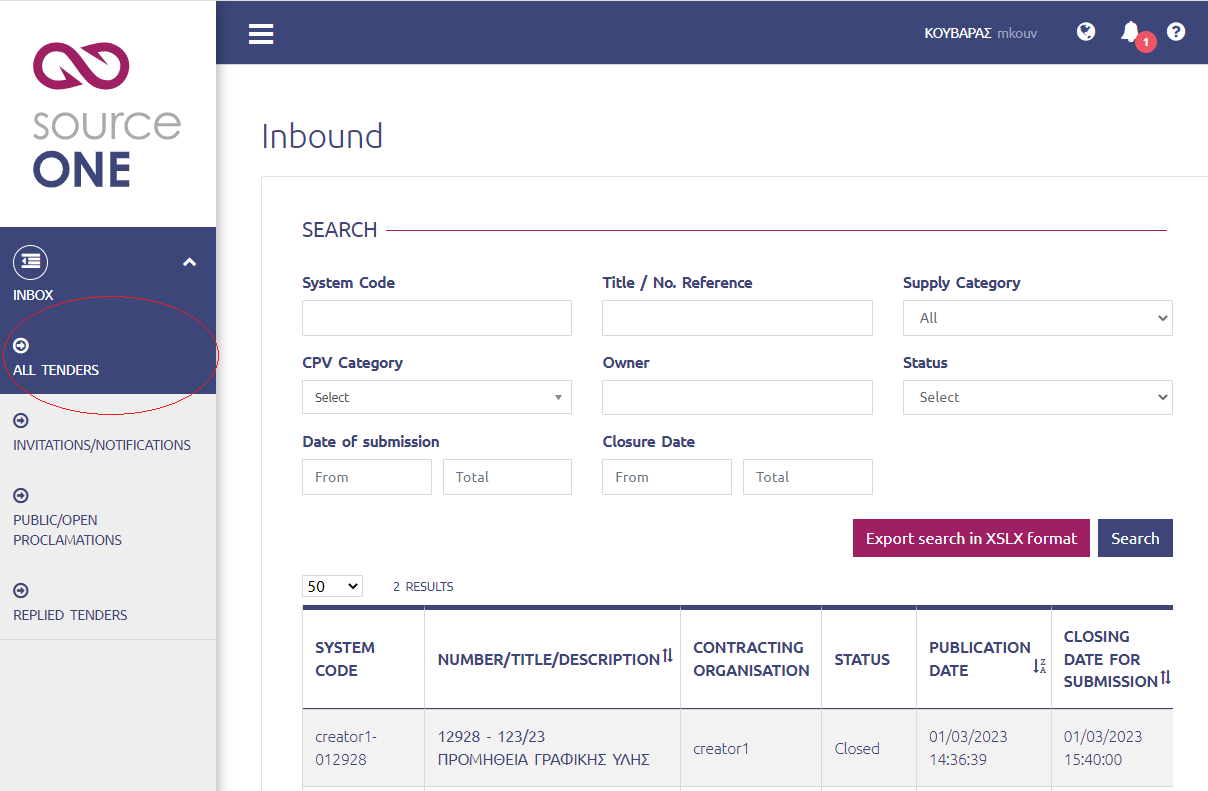
08. Check the tender details that are provided under the tab “DETAILS” and download the documents from the tab "ATTACHMENTS & NOTES". It is suggested that you check all available tabs for your information.
For public tenders, in order to submit questions through the tab "COMMUNICATION" or start editing your offer, you must first press the button “I want to participate in the tender”.
09. Then the ‘NEW REPLY’ button appears where, by clicking on it, you start editing your offer.

