



 586
586
In this specific tender, there are two separate LOTs, for which you are invited to submit a separate offer through the application.
The process allows multiple offers to be submitted using the same user account, following the below specific rules:
- Each offer must refer to only one LOT to be considered valid.
- If you wish to participate in both LOTs, you will need to submit two separate offers (one for each LOT).
In the guide below, you will find detailed steps for correctly submitting an offer for each LOT.
📺 Watch the related video/gif for step-by-step guidance on responding to the tender.
Click on the gif to see it in full size.
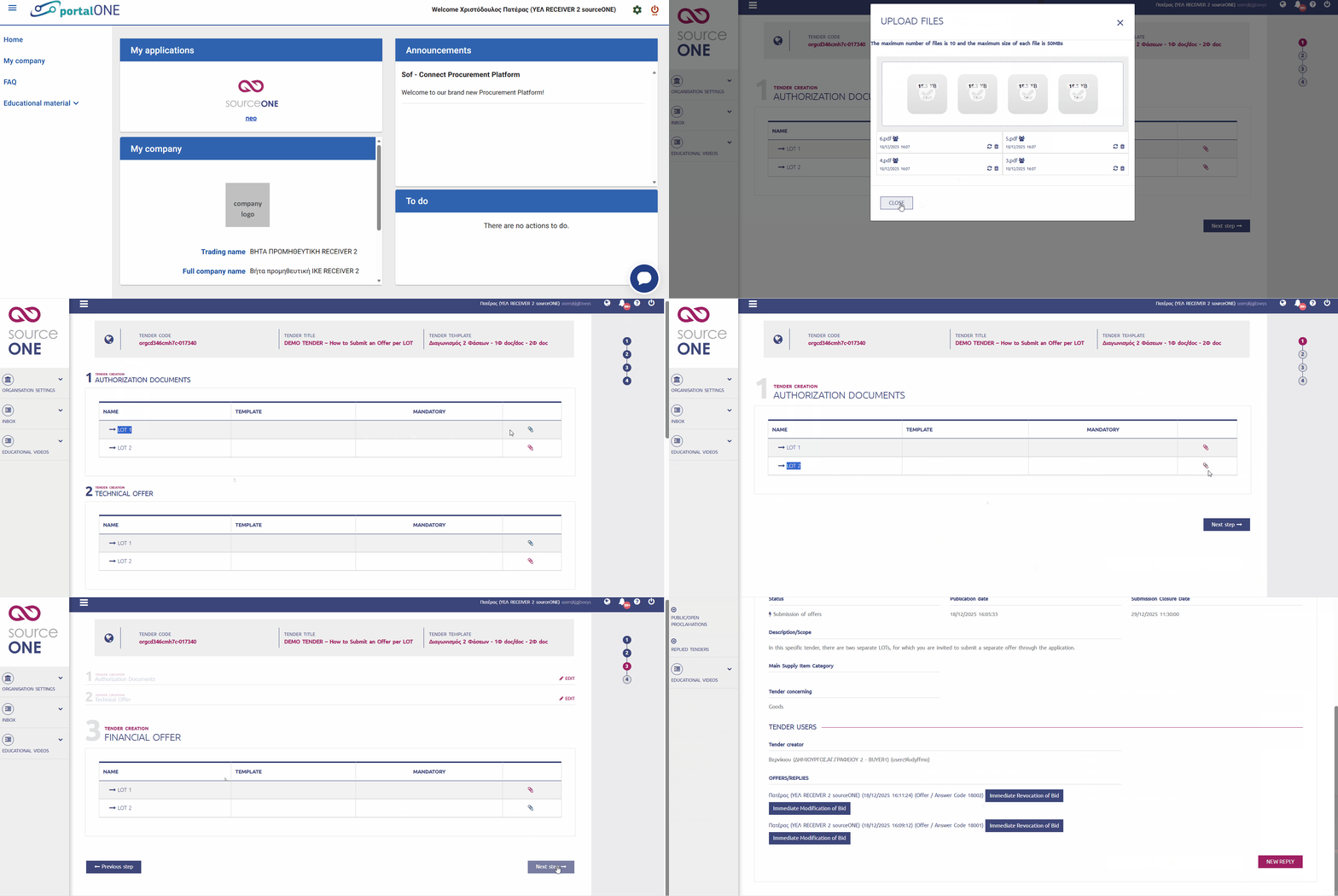
➤ Step-by-Step Instructions:
- Visit the website https://www.marketsite.gr/ and log in with your user credentials.
- From the “My Applications” section, select the application “neo”.
- Go to the left menu of the application and click INBOX → PUBLIC/OPEN PROCLAMATIONS.
- On the Inbound screen, apply the appropriate search filters according to the tender criteria and click Search. From the results list, select the tender you are interested in by clicking on NUMBER/TITLE/DESCRIPTION.
📌 Note: The Tender Information screen provides a detailed overview of the tender details. You can navigate through the following tabs:
- DETAILS: Basic and detailed tender information.
- ATTACHMENTS & NOTES: Attached files and related notes.
- PHASES / DOSSIERS: Tender phases and dossiers.
- TENDER LOG: Action history.
- COMMUNICATION: All related communication.
- EVALUATION: Results after DESFA user actions.
- In the DETAILS tab, click the “Offer/Reply options” button to start your response and, in the pop-up window, select “Same User”.
- Click the “NEW REPLY” button to begin submitting your offer.
⚠️ Submit an offer for only one LOT per reply. To submit an offer for the other LOT, after completing the first submission, you must create a new reply using the same user credentials.
A: Attach Documents in the Authorization Documents table for the desired LOT (in this example, LOT1)
- Locate LOT1 in the Authorization Documents table.
- Click the red paperclip icon for LOT1 in the last column on the right, and in the pop-up window, select or drag the files to attach them.
- When finished, click CLOSE to close the window. The paperclip icon will turn green once at least one file is attached.
- Click “Next step”.
B: Attach Documents in the Technical Offer table for the desired LOT (in this example, LOT1)
- In the Technical Offer table, locate LOT1 and repeat the attachment process (please refer to above steps 8, 9 and 10).
C: Attach Documents in the Financial Offer table for the desired LOT (in this example, LOT1)
- In the Financial Offer table, locate LOT1 and repeat the attachment process (please refer to above steps 8, 9 and 10).
D: SUPPLIER/FINANCIAL OPERATOR INFORMATION
- Check your contact details, make corrections if needed, click Save, and then click “Next step”.
- In the preview, review the details and, if changes are required, click Previous step to return to the relevant section or “Save Offer/Reply draft” to continue.
- On the next screen, to edit the response, click Edit draft, or click Final Offer/Reply Submission to submit your offer for the desired LOT (in this example, LOT1). Finally, in the pop-up window, click “Submit”.
Upon successful submission of your offer, a message will appear in a green box:
“Your offer/response dossier has been successfully submitted!”
📌 Note: In the DETAILS tab, at the bottom, you will see the OFFERS/REPLIES field, where your offer appears with a unique Offer/Answer Code XXX.
- To view the offer: Click on the Offer/Answer Code.
- To cancel the offer: Select Immediate Revocation of Bid.
- To modify the offer: Select Immediate Modification of Bid.
To submit an offer for the other LOT, repeat the process from Step 6 to Step 15.

