216
216
To register, please click on the link provided by the Buyer for the desired registration.
- Select the button Sign Up.

-
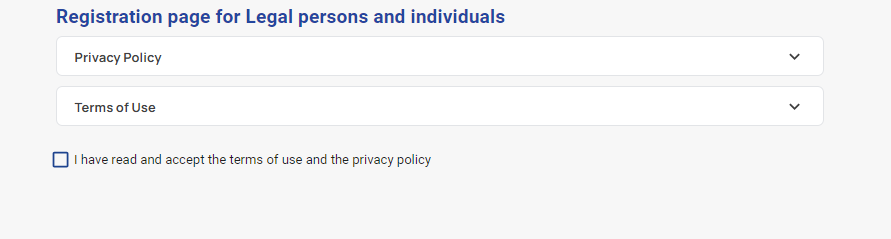
Read the Terms of use and the Privacy policy.
-
If you agree, click on the tick box: I have read and accept the terms of use and the privacy policy, to activate the registration buttons.
-
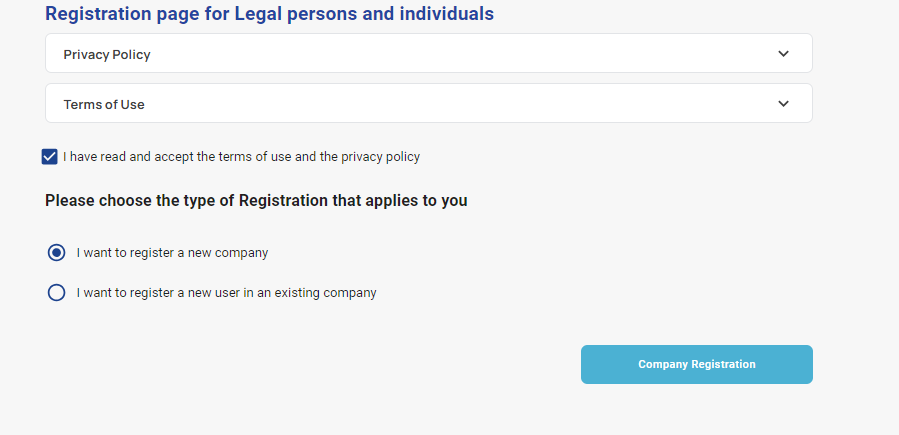
Under "Please choose the type of Registration that applies to you", select I want to register a new company.
-
Select Company Registration.
-
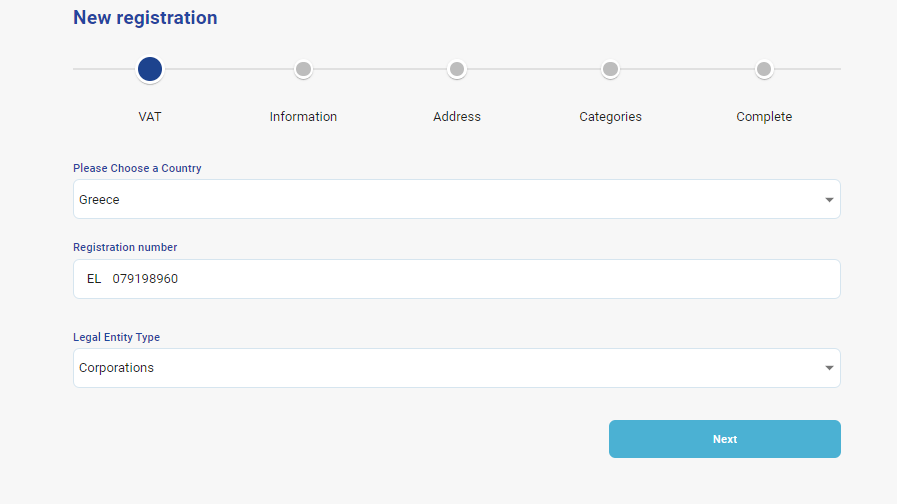
Select the Country from the field Please Choose a Country.
-
In the Registration number field, enter your VAT Number otherwise enter any registration number you may have. If the buyer offers an option, in the Type field, select either VAT or No VAT.
-
In the field of Legal Entity Type select one of the available options.
-
Select Next.
-
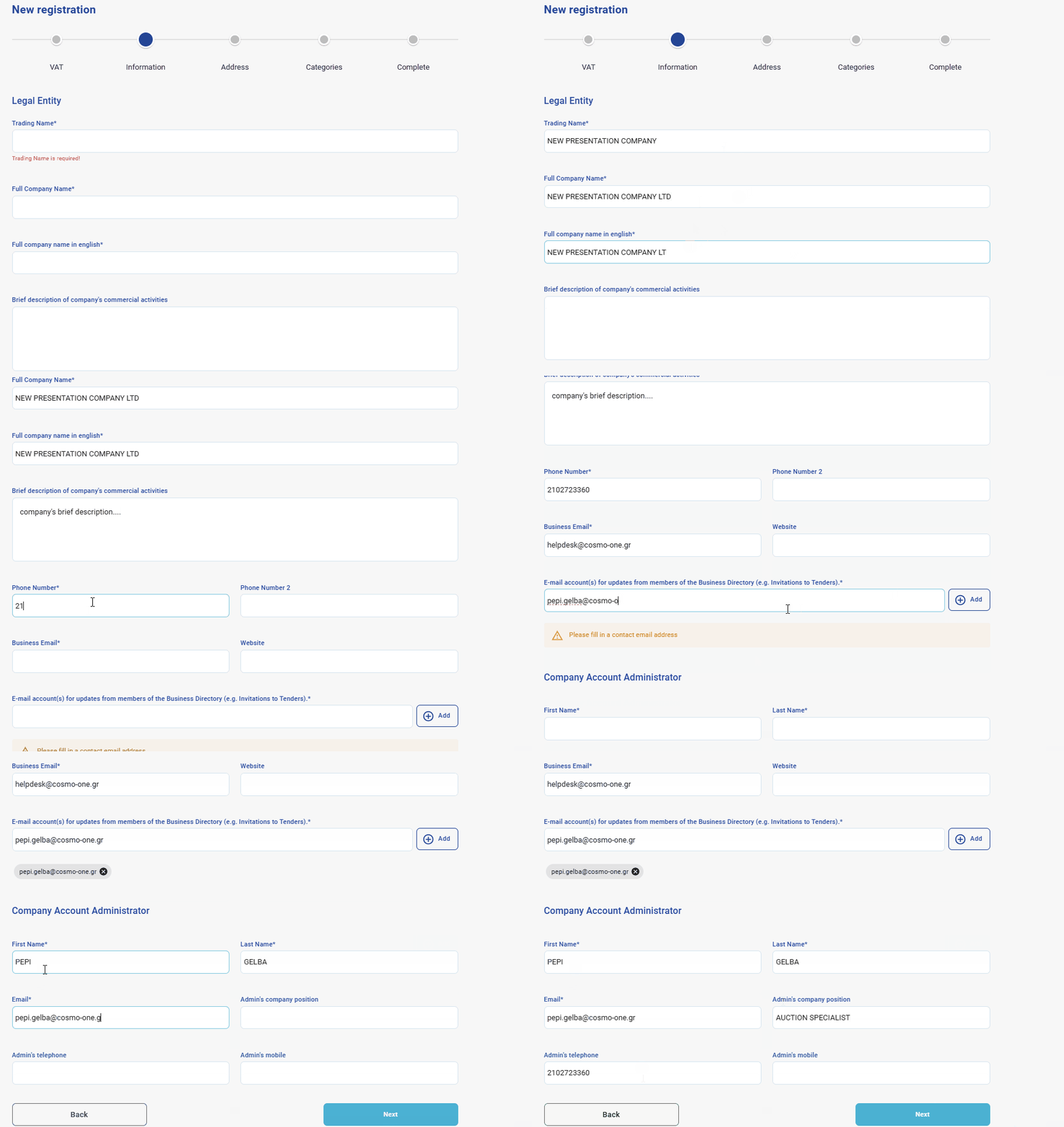
Enter the details of the Legal Entity and the Company Account Administrator, as shown in the following GIF. Note that the user created after the completion of registration, will contain details that you declared for the Company Account Administrator and credentials will be sent to the specific e-mail.
-
In the field E-mail account(s) for updates from members of the Business Directory (e.g. Invitations to Tenders), you will enter the email addresses that you wish to receive invitations for new e-Tenders or for their imminent expiration, that concern the application sourceONE neo.
-
Fill in the email that you are interested in and press +Add. You can repeat this process to add more email addresses as needed.
-
Select Next.
-
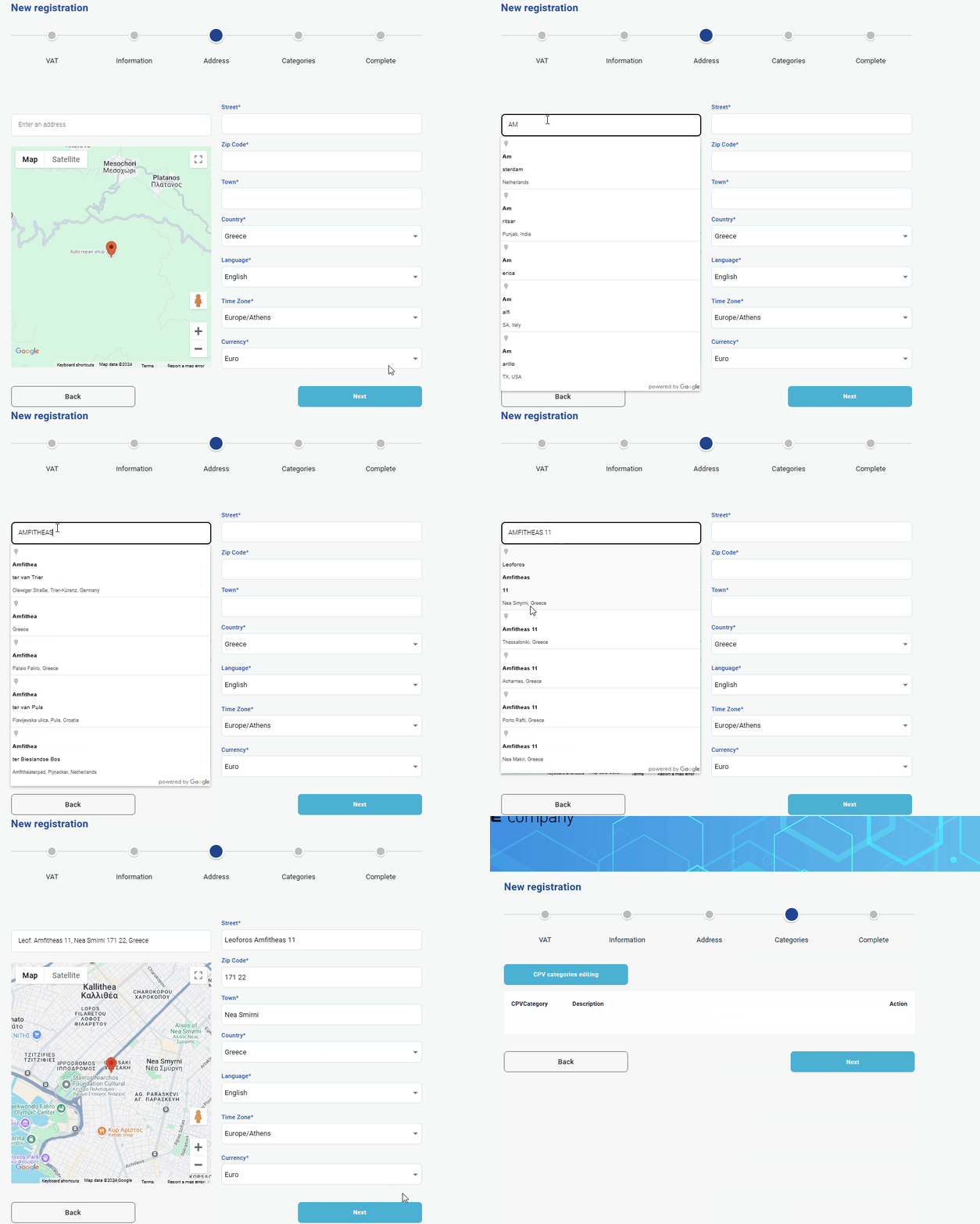
Enter your address and make any corrections, if necessary.
-
Please also confirm or change the fields Country, Language, Time Zone and Currency.
-
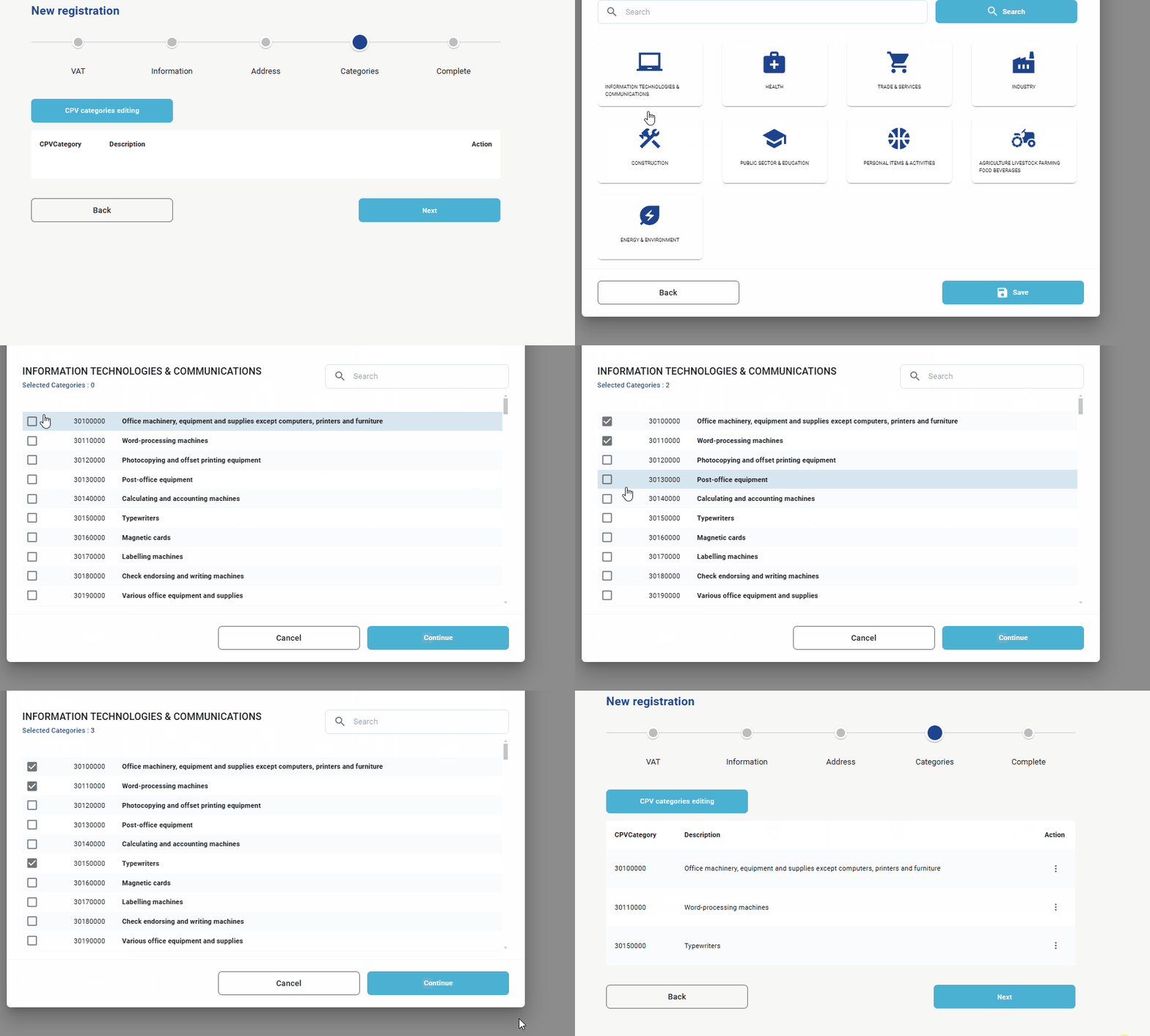
Categorize your company according to the “European Standard CPV” and to your commercial activities, by selecting the CPV Categories editing button.
-
It is suggested the keyword search, as the way to search categories. Alternatively, you click on each category group and view the available categories.
-
If you find the category that you are interested in, click the corresponding tickbox. Select Continue. Repeat the same procedure for other categories if you wish.
-
Select Save.
-
Select Next.
-
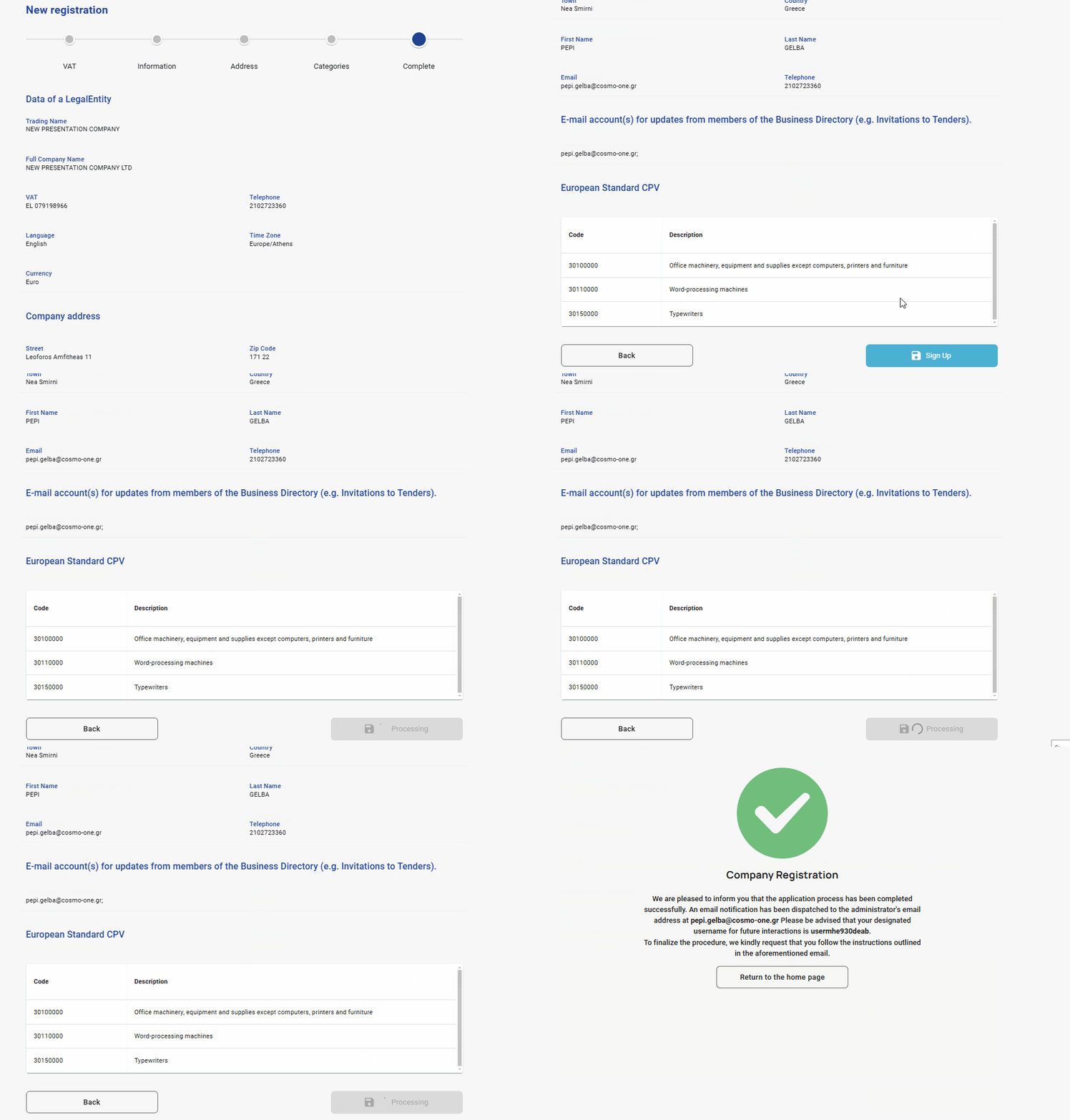
Confirm that the information you have provided is correct.
-
You can edit the data by selecting the button Back, at the bottom of the page.
-
Select Sign Up.
-
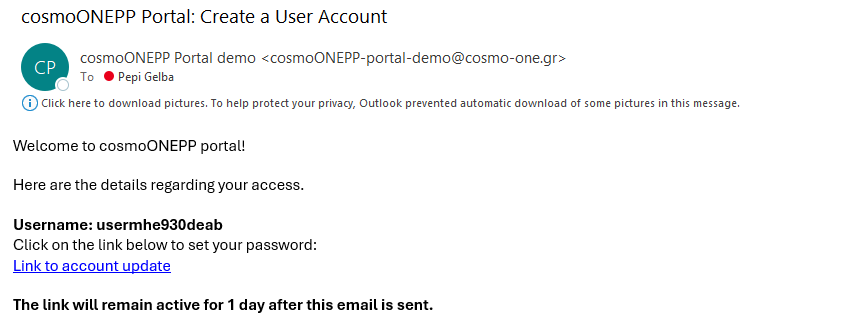
After completing your registration, you will receive a confirmation email at the email address you provided. This email will look like the example shown below and will contain your Username and a link to set your Password. Please note that the link is typically active for 24 hours.
To set up your password:
-
Click on the “Link to account update” in the email. This will open a browser window where you will be prompted to set a new password and verify your email.
-
Select “Click here to continue” to proceed.
-
Enter your new password.
-
Re-enter the new password to confirm it.
-
Select Submit to complete the process.