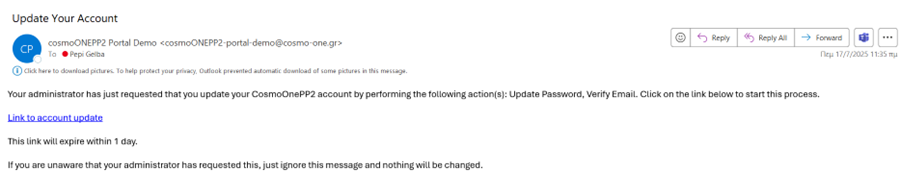
How can I activate a user with a Pending Approval status?

Oct 15, 2025
 79
79
📺 Watch the related video/gif to guide you step-by-step through the user activation process.
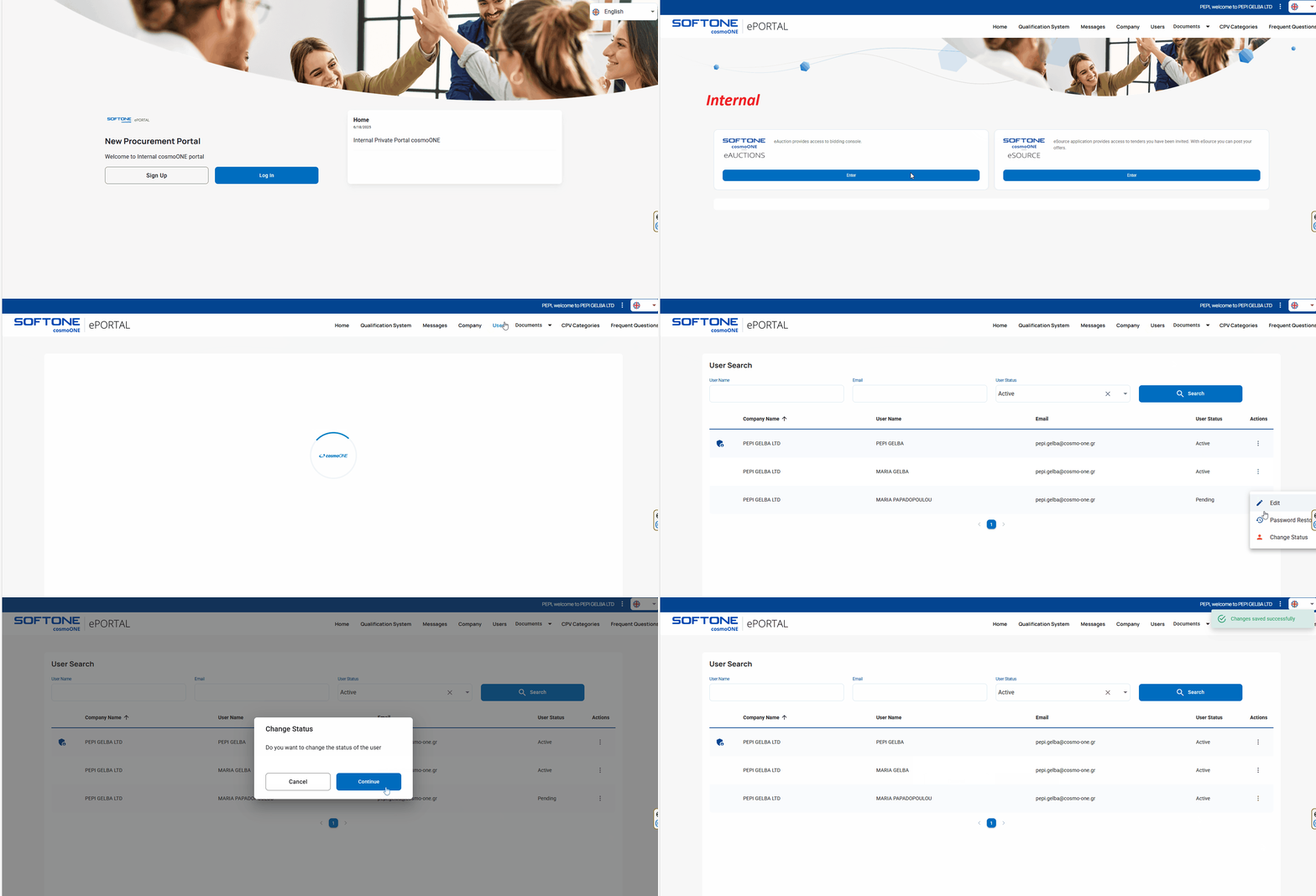
➤ Step-by-step instructions:
1. Use your existing company user credentials to log in, via the link sent by the Contracting Entity.
2. Navigate and select the “Users” section from the vertical main menu.
3. In the users list, click on the three vertical dots (⋮) located in the “Actions” column for the user you wish to activate.
4. Choose “Change Status” from the “pop up” menu.
5. In the change status message that appears, click Continue.
⚠️ The user will receive an email with their user ID at the email address provided during the registration process.