


How do I update a user’s information?

Oct 15, 2025
 27
27
📺 Watch the related video/gif to guide you step-by-step through updating user details.
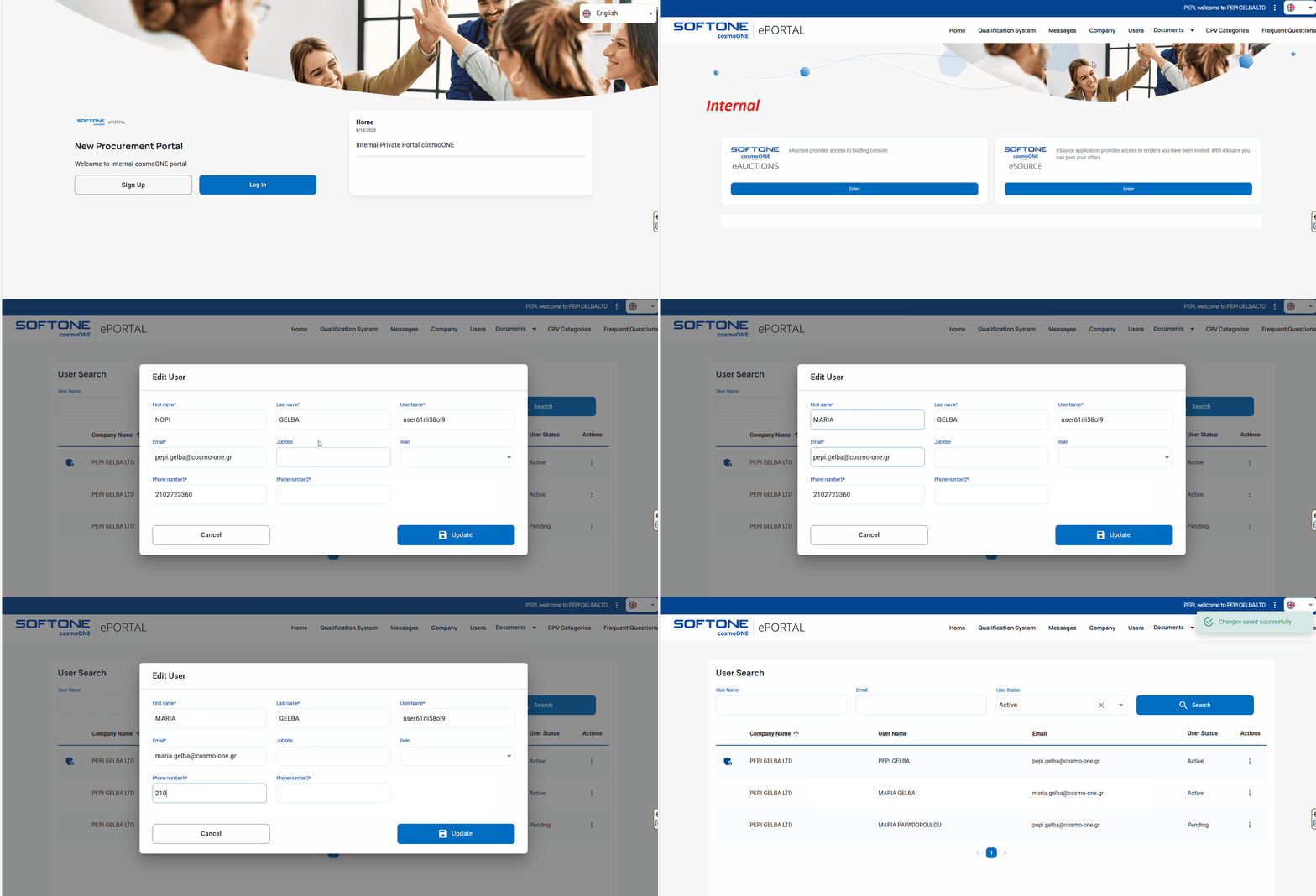
➤ Step-by-step instructions:
1. Log in with your personal credentials.
2. Navigate to the “Users” section from the main menu.
3. Locate the user you wish to modify and click on the three vertical dots (⋮) in the “Actions” column.
4. Select “Edit” from the pop-up menu.
5. Update the necessary fields, including:
- First Name
- Last name
- Job title
- Phone number 1
- Phone number 2
6. After completing the edits, click Update to save your changes.
⚠️ All changes are applied immediately and will take effect on the user’s account.

