



 26
26
📺 Watch the related video/gif for step-by-step guidance on modifying the email addresses that receive notifications for new tenders.
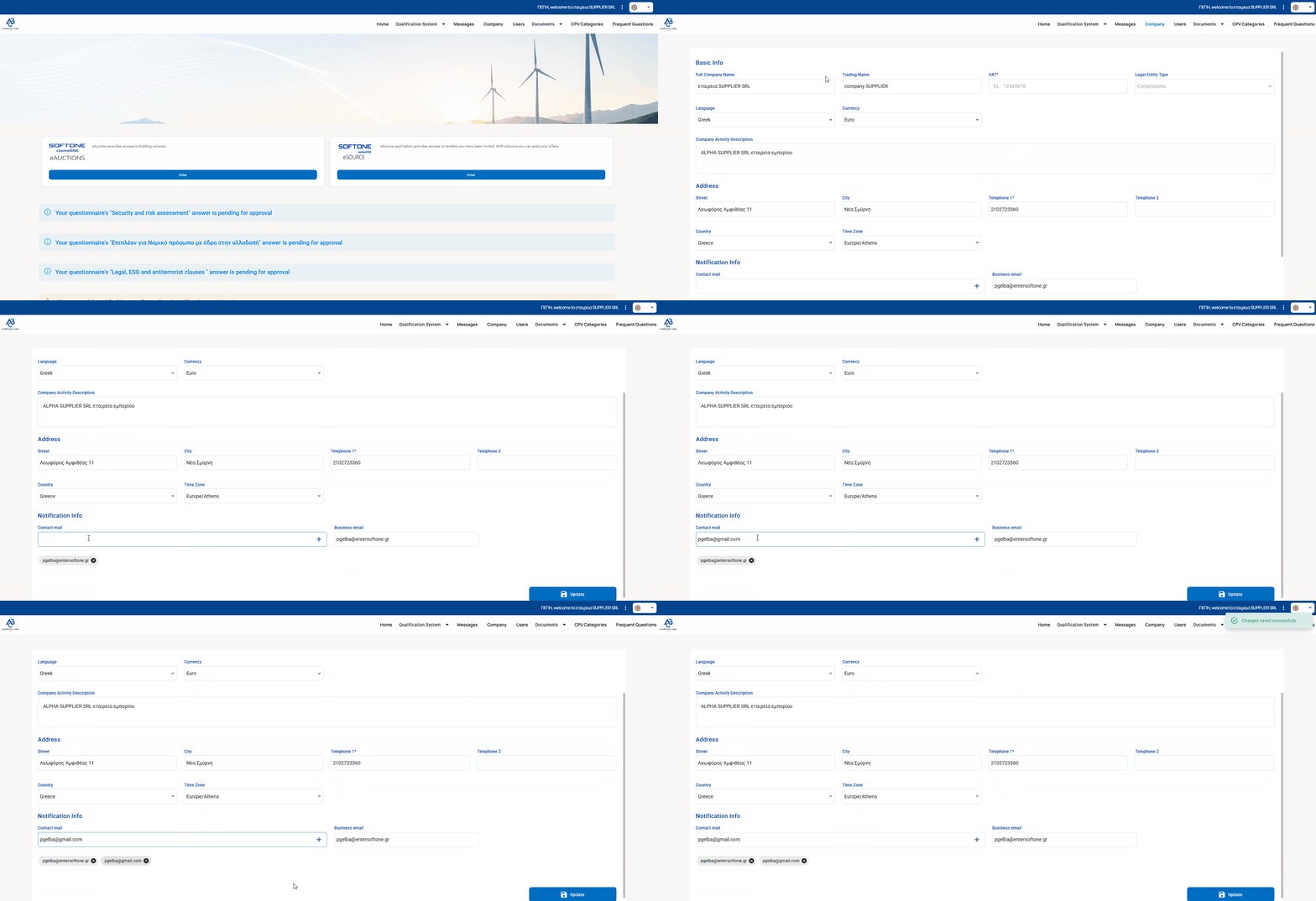
➤ Step-by-step instructions:
1. Log in to the platform using your credentials
2. From the main menu, navigate to the “Company” menu.
3. Use the scroll bar to move to the bottom of the page.
4. Find the “Contact Email” field and follow these steps:
- To remove an email address, simply click the X icon.
- To add a new email address, type it in the provided field and click the + button.
5. Click Update to save changes.
⚠️ The emails included in this specific option receive notifications about tenders from the eSource application, their upcoming deadlines, as well as any updates sent by the Buyer via e-mail.
Please also note that for tenders where your company is initially invited, the informational e-mails regarding communication from the Buyers are sent to the e-mails included in this specific option.
From the moment a user of your company performs any action on the tender (e.g., a public tender where they click "I want to participate," send a query through the communication section, etc.), any update regarding that specific tender is sent only to that specific user. Specifically, it is sent to the last user who performed an action on the tender.
When the tender has been answered, all updates are then sent to the user who submitted the response, even if another user of the company subsequently performs any other action.

