22
22
The application allows you to communicate electronically with the Contracting Entity through the “Messages” tab in the main menu. You can send or reply to messages regarding clarifications, information, or any other relevant matter.
1. Sending a Message to the Contracting Entity
📺 Watch the related video/gif to guide you step by step through the process of sending a message.
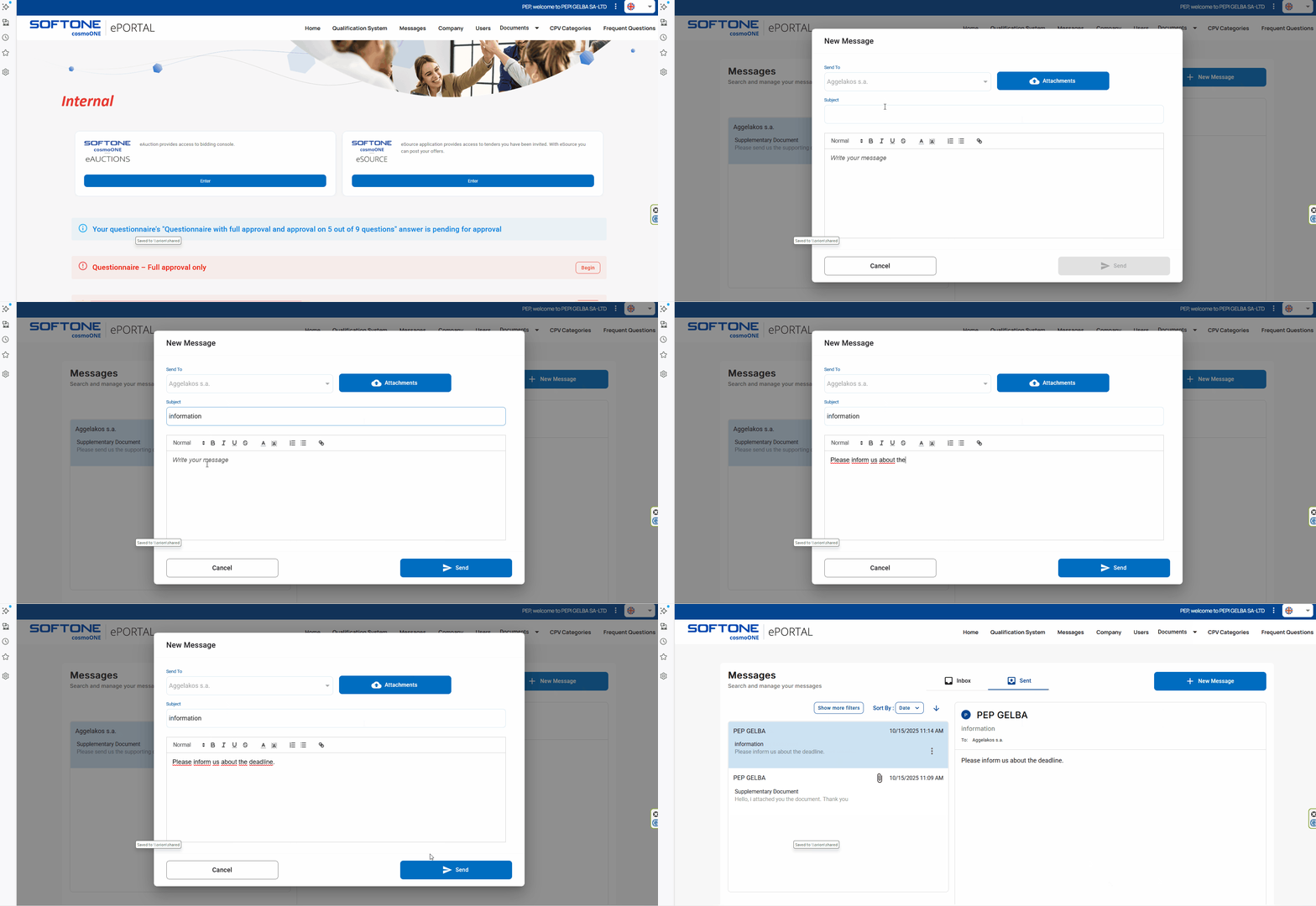
➤ Step by step instructions:
1. Click on the “Messages” tab in the main menu.
2. Click the + New Message button.
3. In the “Send To” field, the Contracting Entity is preselected and cannot be changed.
4. If you wish to attach files, click the Attachments button and upload the desired files.
- Only one file can be uploaded at a time (maximum size: 20 MB).
- Repeat the process to add additional files.
5. Fill in the “Subject” and “Message” fields.
6. Use the font formatting options to style your text.
7. Press Send to submit the message or Cancel to abort the action.
8. Go to the “Sent” tab to view your message.
2. Replying to a Message from the Contracting Entity.
If you receive a new message from the Contracting Entity, a numeric notification badge will appear in the main menu, directly above the “Messages” tab, as shown in the image below.

This indicator shows the number of unread messages, allowing you to easily locate and manage them promptly.
📺 Watch the video/gif to guide you step by step through the process of replying to a message.
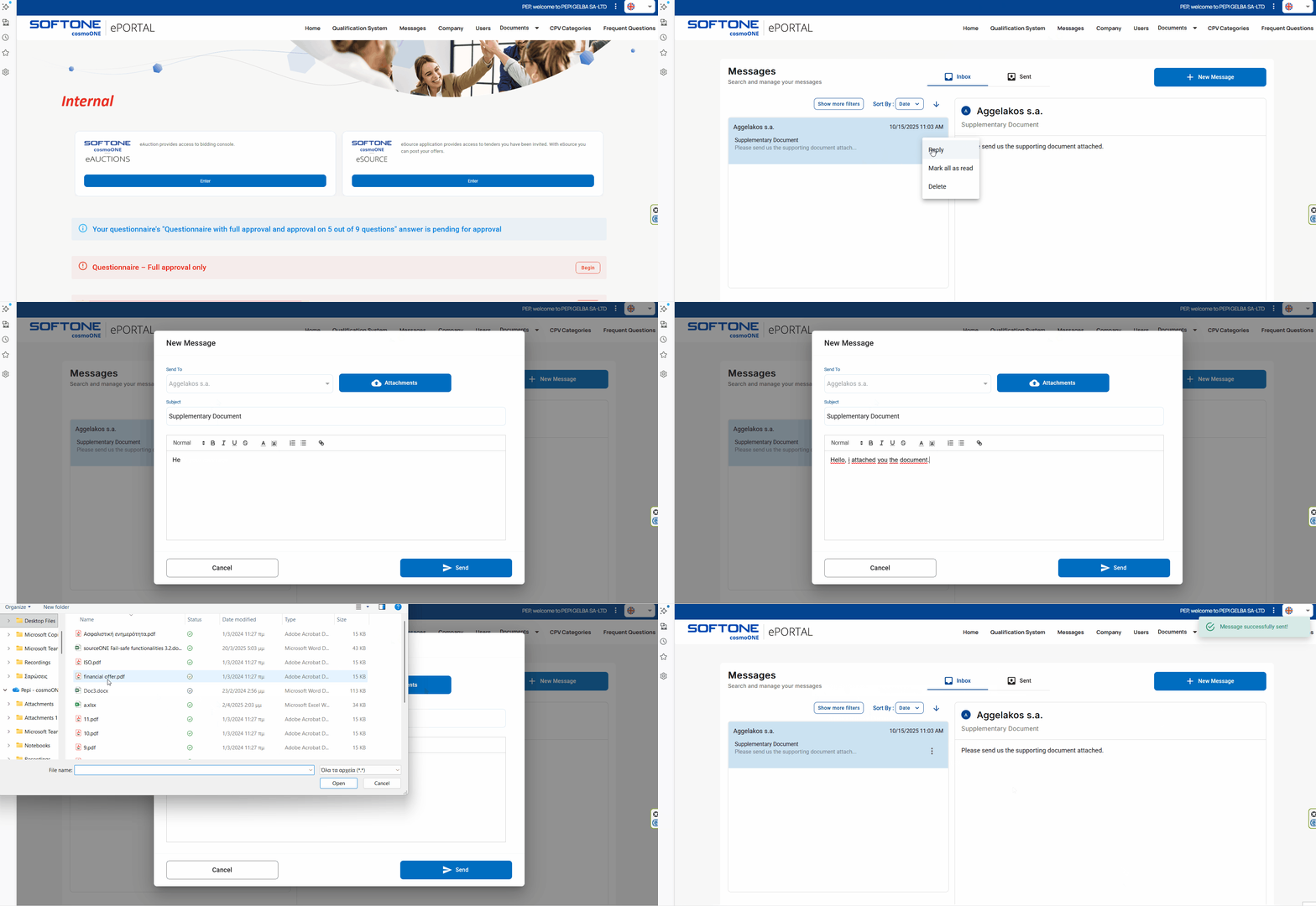
➤ Step by step instructions:
1. Click on the “Messages” tab in the main menu.
2. Click on the message that you want to respond to.
3. Click on the three vertical dots (⋮) on the right to display the available options: Reply, Mark all as read, and Delete.
4. Select “Reply”.
5. If desired, attach files by clicking the Attachments button (one file at a time, maximum size: 20 MB). Repeat the process if you need to attach any additional files.
6. Enter your message.
7. Format the text using the available font options.
8. Press Send to submit the message or Cancel to abort the action.
9. Go to the “Sent” tab to view your message.
3. Message Search
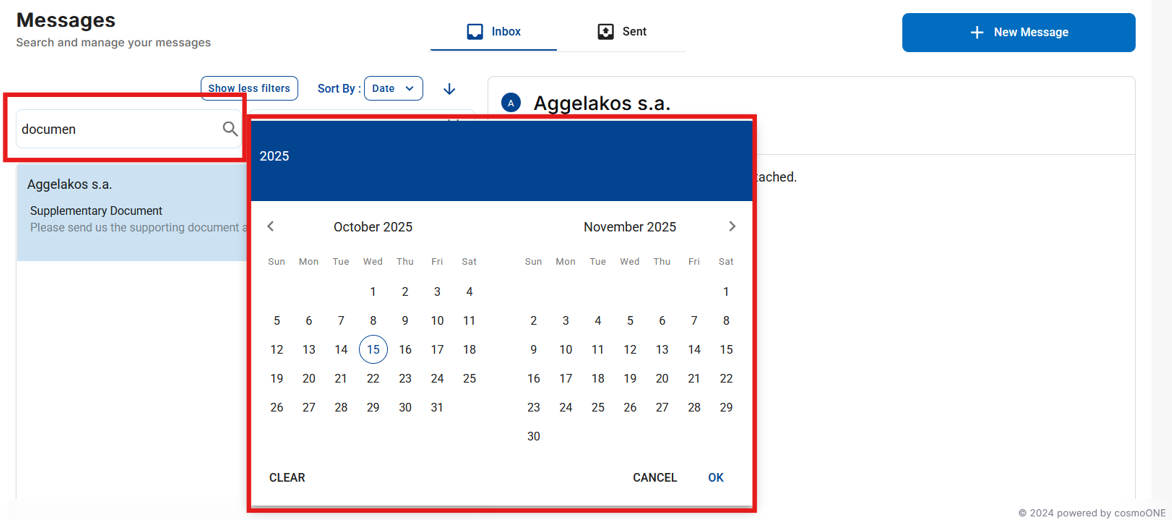
For your convenience when searching for messages, you can use the application's filters to quickly locate the information you need.
1. Click the Show More Filters button.
2. You can filter messages:
- By keywords included in the message subject
- By date of sending or receiving
The filters are available in the corresponding section of the “Messages”, as shown in the image below.