



 29
29
Through the “Qualification system”, buyer users with the appropriate rights can assign suppliers to specific category without requiring an application from the supplier. Once the supplier has been added to the category, and a relevant questionnaire has been defined for that category, the supplier will be able to start completing it.
📺 See the related video/GIF for step-by-step guidance on how to assign a supplier to a category.
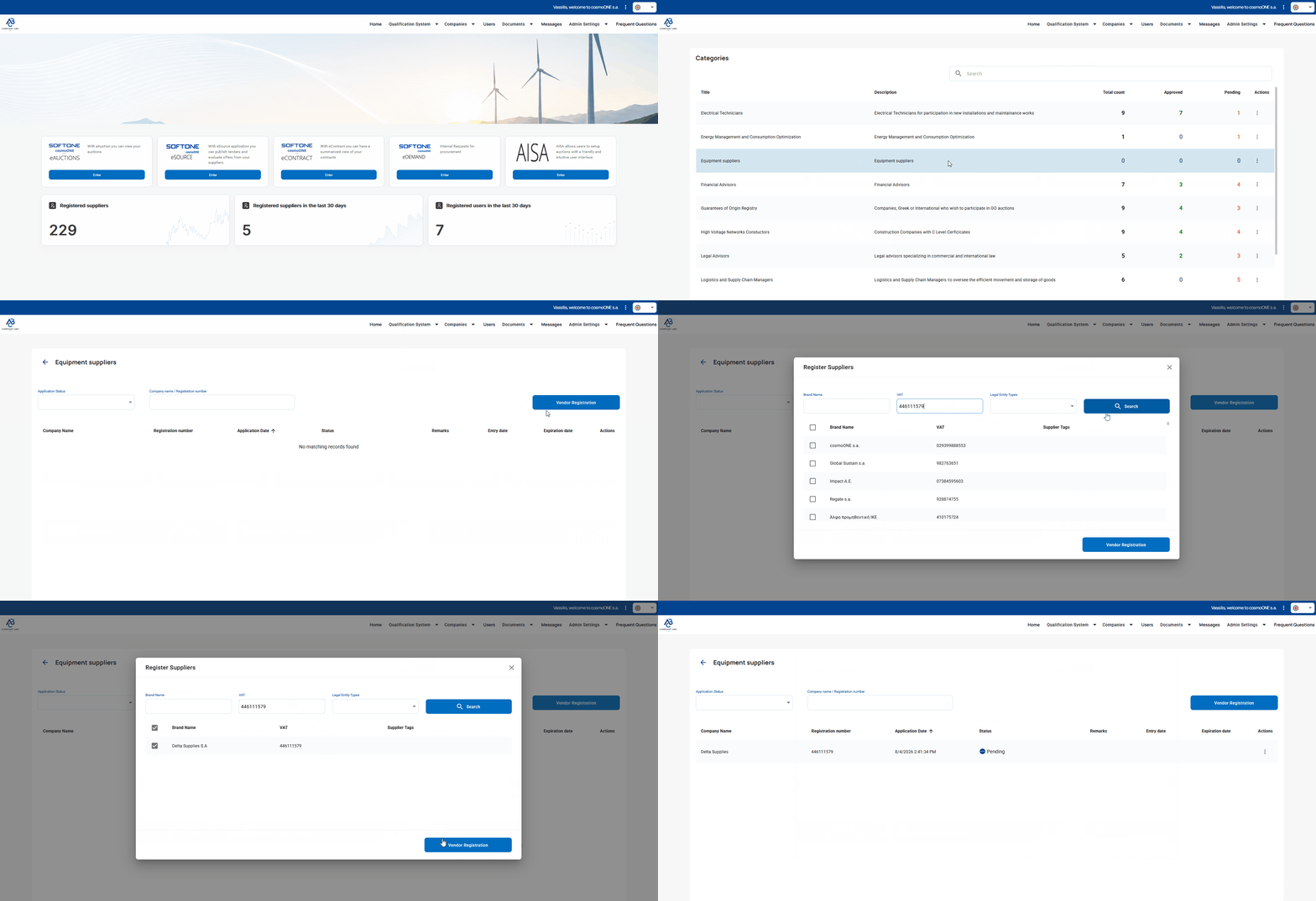
➤ Step by step instructions:
1. Go to the “Qualification system” menu.
2. Select “Categories”.
3. Locate the desired category and select the three vertical dots icon (⋮) on the right, in the “Actions” column.
4. From the pop-up menu, select “View”.
5. Press the button “Vendor Registration”.
6. In the new window named “Register Suppliers”, find the supplier using one of the following methods:
- Using the Company Name, Tax ID (VAT No.), and Company Types filters (drop-down list) and press the Search button.
- Browse through the supplier list and locate the desired supplier.
7. Once you have located the desired supplier, select the checkbox to the left of the supplier’s name. You may also select multiple suppliers to add them to the same group simultaneously.
8. Click on the Vendor Registration button at the bottom of the list.

