



 20
20
👉 This article is linked to the article: How do I manage category enrollment applications through the 'Qualification System -> Participation Applications' menu?
A. Through the “Qualification system”, users with the appropriate rights can evaluate supplier applications for inclusion in specific category.
📺 See the related video/GIF for step-by-step guidance on evaluating an application for inclusion in a category.
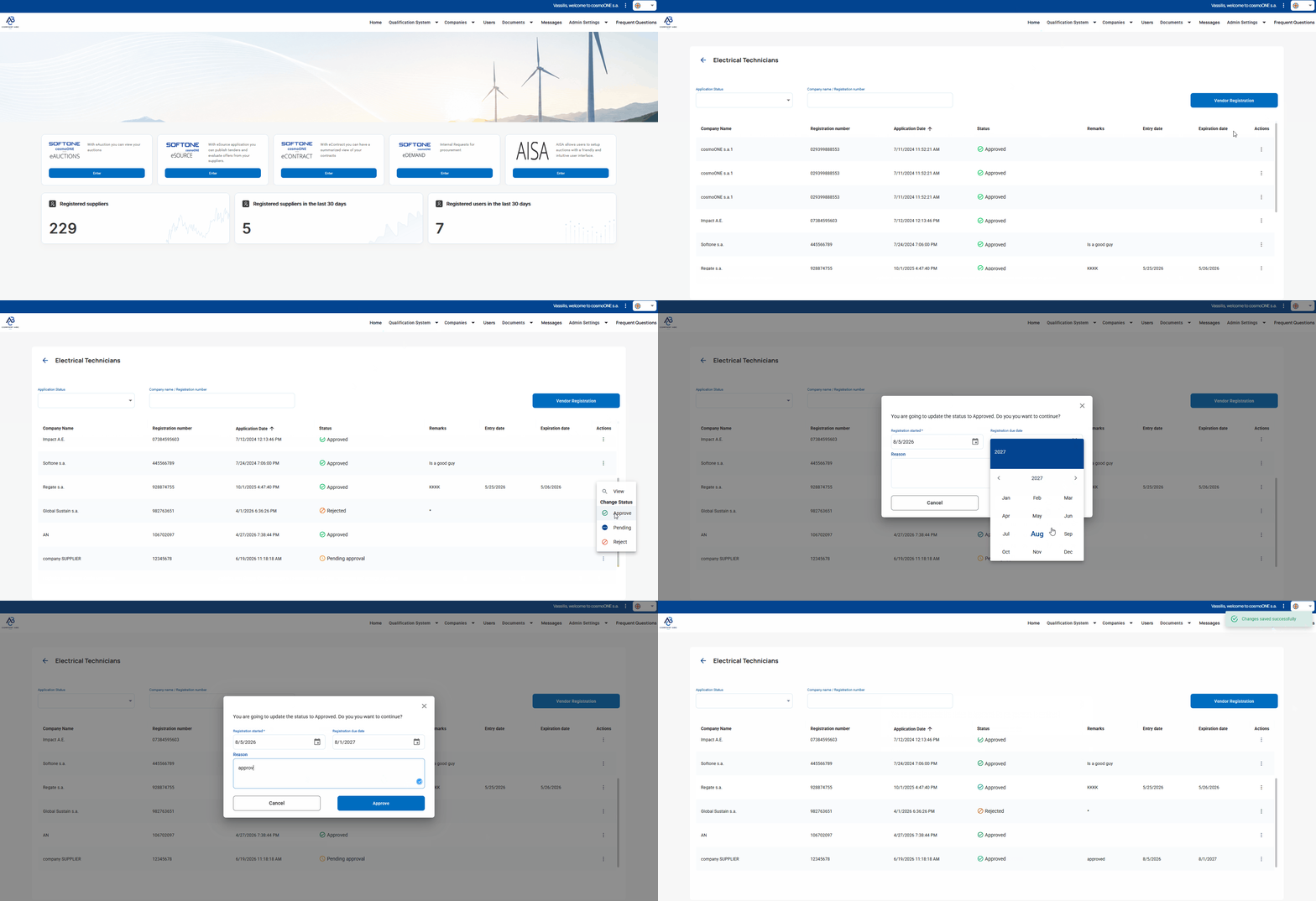
➤ Step by step instructions:
1. Go to the “Qualification System”.
2. Select "Categories".
3. Find the desired category and from “Actions” column click the three vertical dots (⋮) on the right side.
4. From the pop-up menu please select View.
5. On the new screen, please locate the supplier’s application that you wish to evaluate and in the “Actions” column click the three vertical dots (⋮) on the right side.
6. From the pop-up menu for evaluating applications, you can choose:
- Approve ✅
In the confirmation window that appears, please fill in the “Registration started” and optionally the “Registration due date” and “Reason” fields. Then click the Approve button to complete the process. Once approved, the company is successfully added to the category group. - Pending 🔵
In the pending window that appears, you may optionally enter a “Reason”. Click the Pending button to complete the process. The application will remain pending until additional information is collected, or a final decision is made. - Reject ❌
In the rejection window that appears, enter a “Reason” and click the Reject button to reject the application. The application will be rejected, and the company will not be included in the category.
B. Category Table and Supplier Evaluation per Category
The table displays the categories and the status of suppliers' category enrollment applications. The application status is broken down into three separate columns showing the total number of applications, how many are approved, and how many are pending approval.
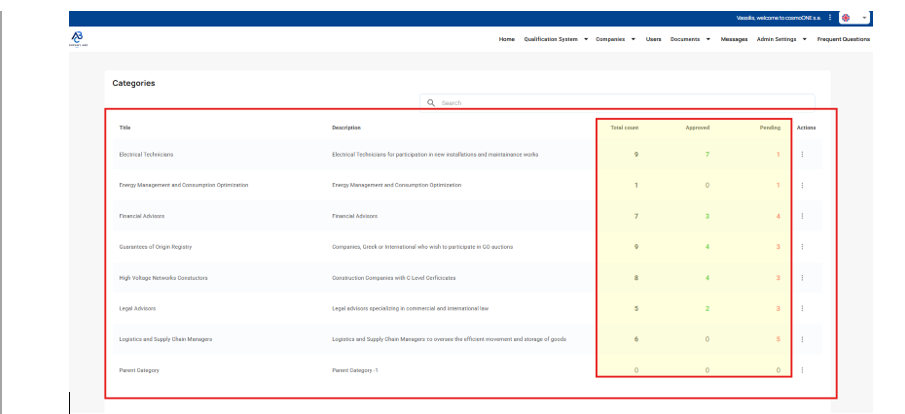
To display the companies that have applied for a specific category:
1. In the “Actions” column, click the three vertical dots (⋮).
2. Select the only available option, “View”.
The companies will be displayed as shown in the image below. For each company in the category, information such as company name, VAT number, application date, status, comments, and enrollment and expiration dates is displayed.
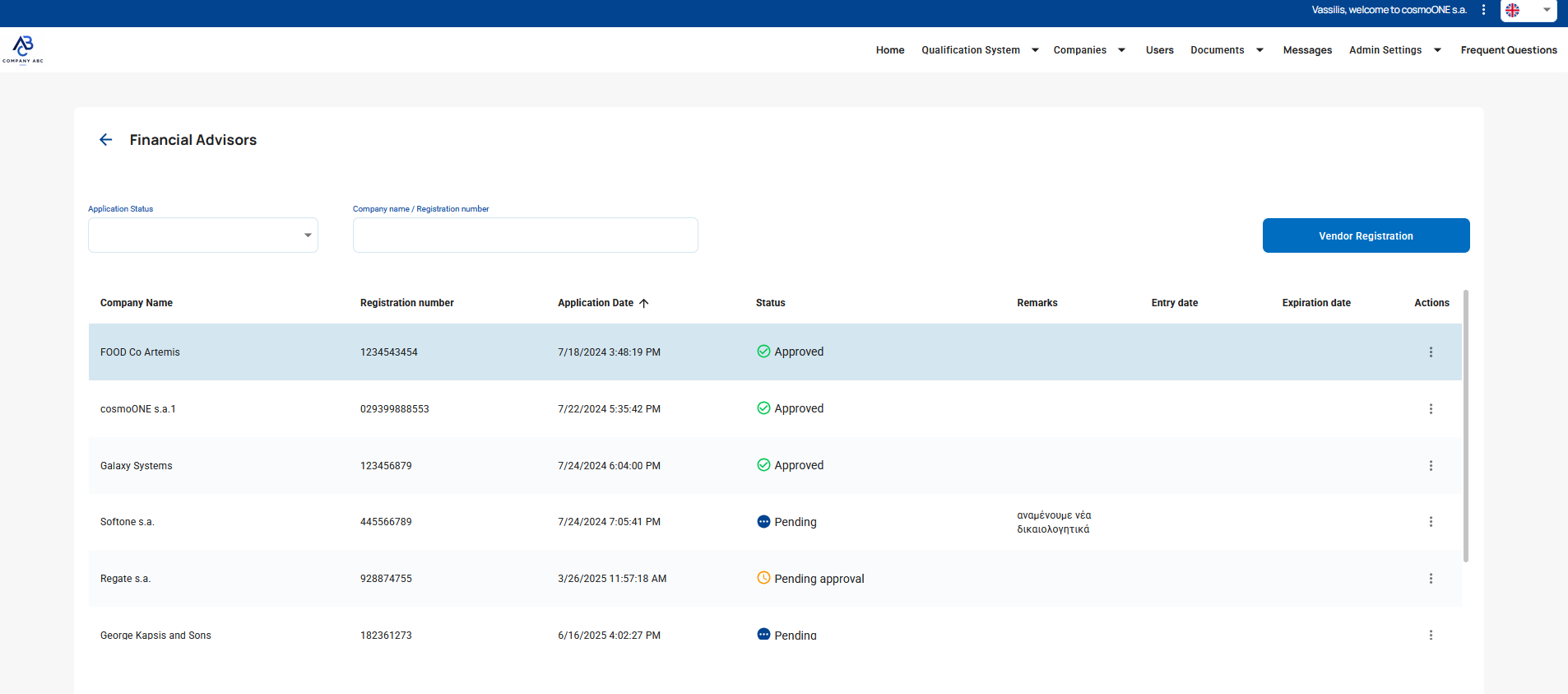
You also have the option to manually register a supplier in the category group by clicking the “Vendor Registration” button. For more details, please check the article: 👉 Registration of Suppliers in a Category by the Buyer
Finally, in the last column, 'Actions', by clicking the three vertical dots (⋮), you can use the pop-up menu to evaluate the supplier's application for inclusion in the specific category or view the company's details.
For detailed information on viewing the company's details, select 'View' and follow the instructions in the article: 👉 What can I do through the option Registered Suppliers

