



 22
22
Through the system, you can send invitations to suppliers who are already registered in the ENTERSOFTONE eProcurement BU (formerly cosmoONE) supplier registry. Suppliers receive an email with a link, to a form pre-filled with their information from the ENTERSOFTONE eProcurement BU registry, which they can edit as needed. Once they confirm or update their information, they can finalize their company registration on the Buyer’s Portal.
📺 See the related video/GIF for step-by-step guidance on how to send an invitation.
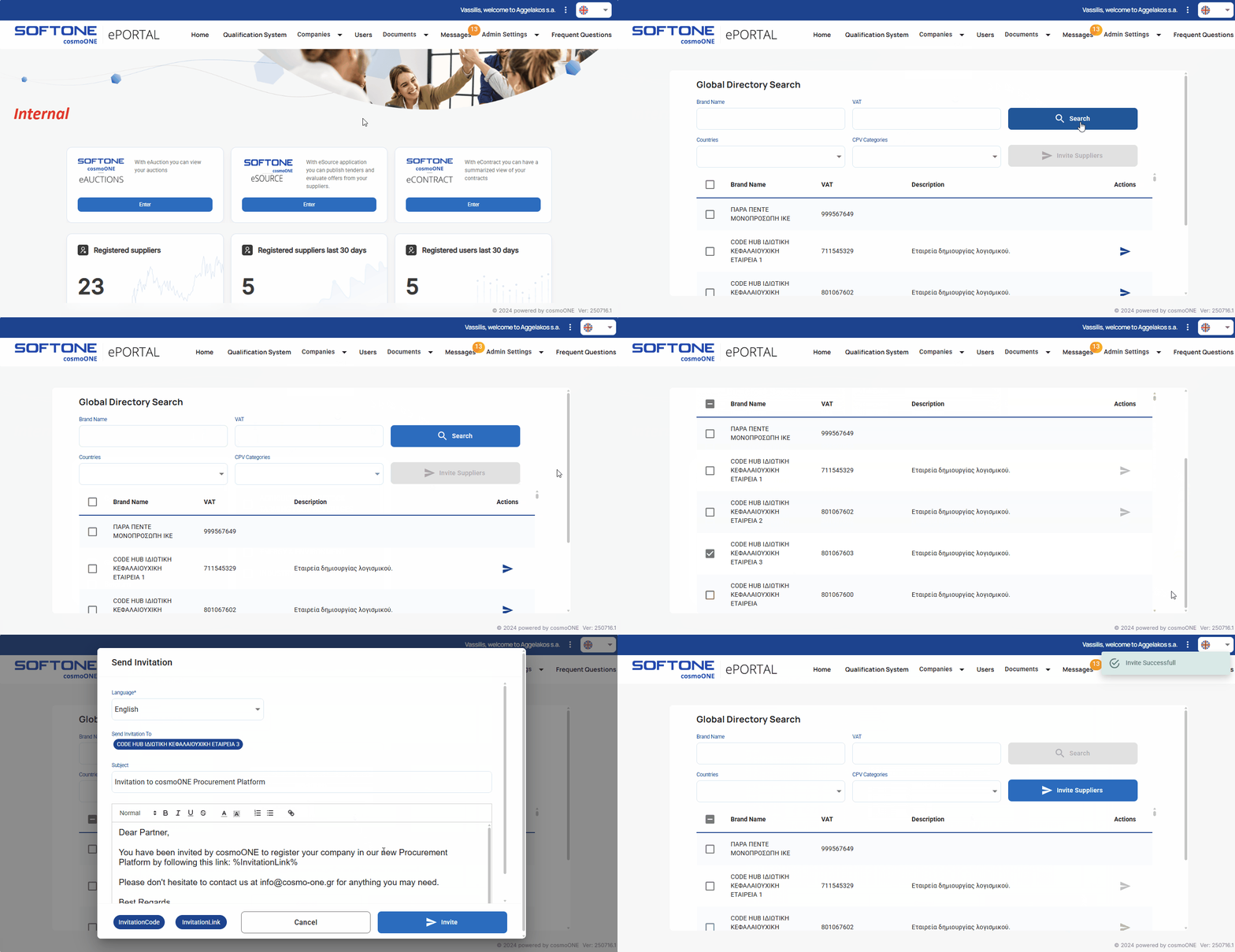
➤ Step by step instructions:
1. Go to the Companies → Global Directory menu.
2. Use the available filters (Brand name, VAT Number, Countries, CPV categories) to search for relevant companies.
3. Select the desired company by clicking the checkbox to the left of the company name, and then click the Invite Suppliers button.
4. A confirmation pop-up windows appears asking, “Do you want to invite the selected suppliers?”. Click Continue to send the invitation or Cancel to stop the process.
5. In the pop-up window Send Invitation, choose a language from the “Language” dropdown menu.
6. “Send Invitation To” displays companies you have selected.
7. The subject and body fields display the content defined by the Buyer in the email template (Admin Settings → E-mail Templates). You can edit and format the text using the toolbar.
📌Note: Using the InvitationLink, located below the text field, is mandatory. This link directs suppliers to their pre-filled registration form. Optionally, you can also use the InvitationCode, which corresponds to the invitation code.
Fields must be enclosed within two percent symbols (%) to function correctly (e.g., %InvitationLink%).
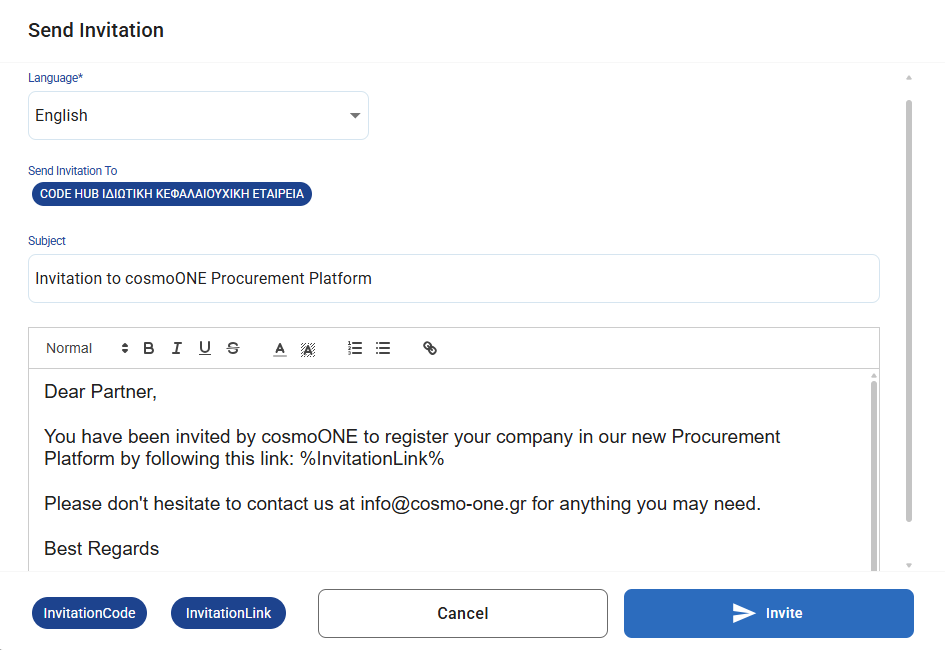
8. To complete the action, click Invite or Cancel to abort it.
9. A blue arrow next to the company name indicates the invitation was sent successfully.
10. If you wish to resend the invitation, click the blue arrow again, update the details if needed, and then click Resend invite.

