



 0
0
👉 This article is linked to the article: What can I do through the option Registered Suppliers?
Through the "Registered Suppliers" menu, the user has the ability to manage requirements in questionnaires related to each supplier, always depending on the access rights they have. Specifically, from this point, they can create a new requirement or delete an existing one, thus supporting proper monitoring and organization of the supplier evaluation process.
📺 Watch the related video/gif to guide you step-by-step through deleting or adding a requirement within the supplier's "Obligations" section.
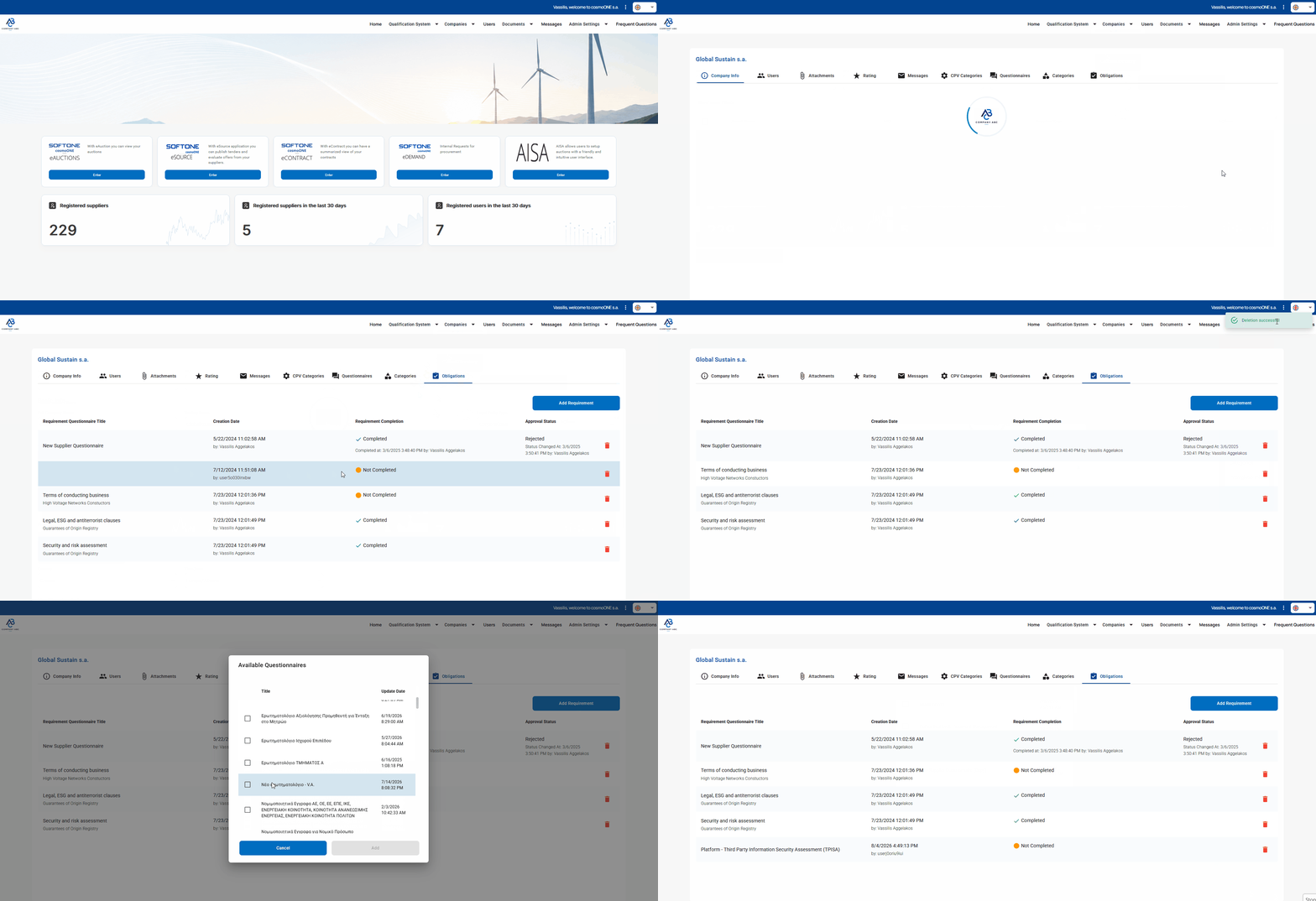
➤ Step-by-step instructions:
- Go to the "Companies" menu and select "Registered Suppliers".
- Locate the desired supplier and in the "Actions" column, select the pencil icon on the right.
- Then select the "Obligations" section.
- To delete a requirement, locate the relevant row in the table and select the trash bin icon on the right. In the confirmation pop-up that appears, click Continue to proceed with the deletion, or Cancel to reject the action.
- To add a requirement, click the Add Requirement button at the top right.
- From the list, locate the appropriate questionnaire and select the tick box next to the title.
- Click Add.
📌Note: If you need to assign more than one requirement, you can select multiple questionnaires before clicking add, or repeat the process.

