



 0
0
This section describes the process of searching, viewing, and evaluating Supplier Applications for Participation through the "Qualification System" menu. Using the available filters, viewing options, and evaluation functions, authorized Buyer users can locate applications, review the attached questionnaires and files, and proceed with their final approval or rejection.
📺 Watch the related video/gif to guide you step-by-step through the process of searching, viewing, and evaluating an Application for Participation.
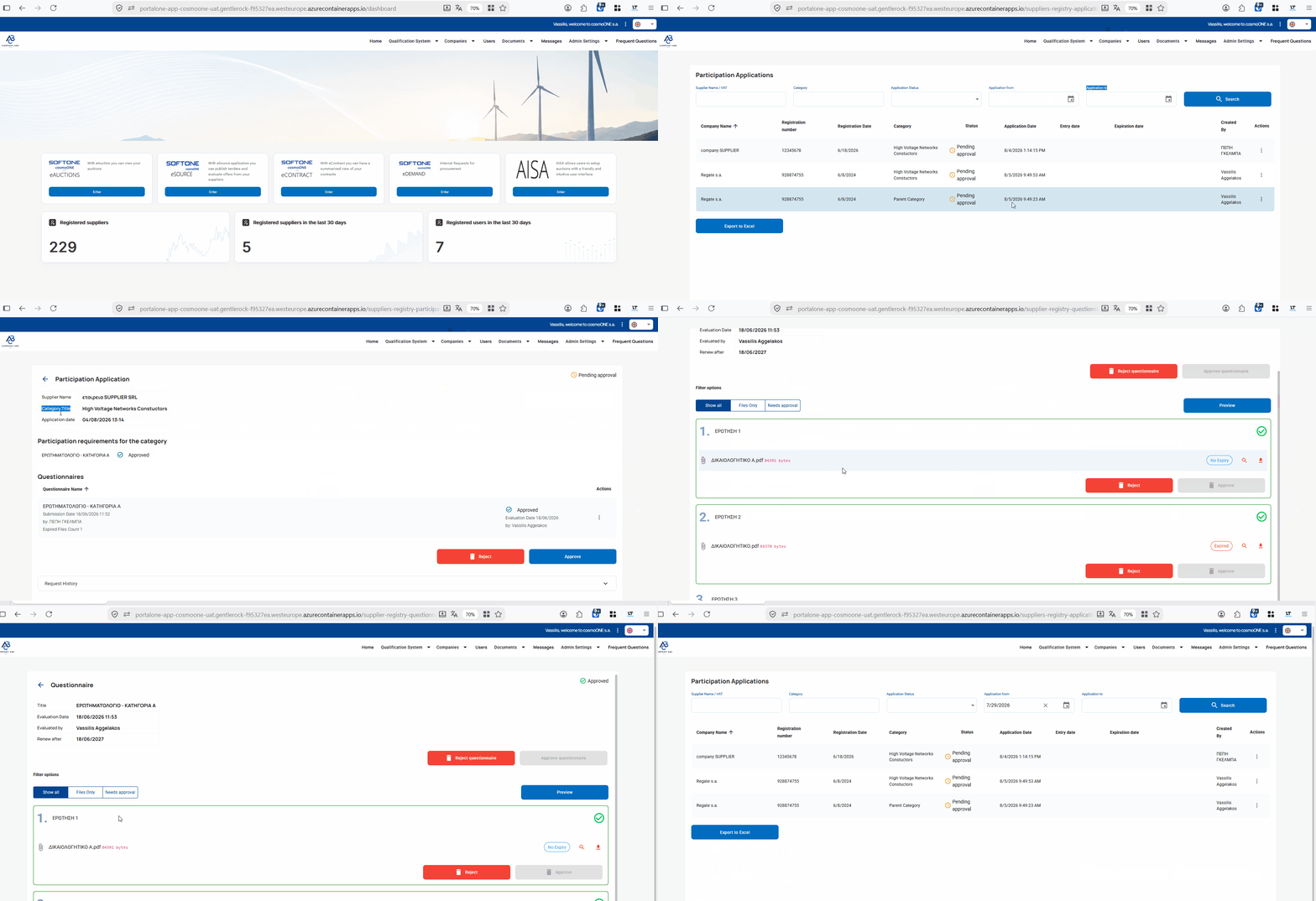
➤ Step-by-step instructions:
1. Go to the "Qualification System" menu.
2. Select "Participation Applications".
3. Using the available filters, you can locate the applications for participation of each company. Specifically, you can use the following search fields:
- Supplier Name / Tax ID: Allows you to search records based on company name or Tax Registration Number.
- Category: Used to narrow down results to a specific category.
- Application Status: Allows you to select the current status of the application (Approved, Rejected, Pending Evaluation).
- Application from: Sets the minimum submission date you want to appear in the results.
- Application to: Sets the maximum submission date to define the time range of the search.
After selecting the desired criteria, click Search to display the relevant records in the results table.
4. By clicking the Export to Excel button, you can download all displayed applications for participation into an Excel file, according to the filters you have applied on the screen.
5. Locate the desired application for participation and in the "Actions" column, select the three-dot icon (⋮) on the right.
6. From the pop-up menu, select "View".
7. On the new screen displayed for the application for participation, you can see the following details:
- Supplier Name: Displays the name of the company that submitted the application for participation.
- Category Title: Displays the procurement category to which this application belongs.
- Application date: Displays the date and time the application was submitted to the system.
- Participation requirements for the category: For each category, the corresponding questionnaires/requirements that have been defined and must be completed by the supplier are displayed. For each requirement, the title (i.e., the name of the questionnaire) and the evaluation indicator are shown, reflecting its current status (e.g., Approved, Pending Evaluation, etc.).
Questionnaires: This section presents all the questionnaires that the supplier has completed as part of their application. For each questionnaire, you can see the questionnaire name, submission date and time, the user's name, the number of files that may have expired, and the evaluation status, so you know whether it has already been reviewed. If it has already been evaluated, the evaluation date and the name of the user who evaluated the questionnaire will appear on the right. Under "Actions", click the three-dot icon (⋮) on the right, and from the pop-up menu that appears, select "View". On this screen you can:
- View the evaluation status of the questionnaire (e.g., pending, under evaluation, completed), at the top right.
- View and filter the available sections of the questionnaire by selecting one of the tabs "Show All", "Files Only", or "Needs Approval".
- Check the supplier's answers.
- Check the required files and export them. You can preview a document by clicking the magnifying glass icon, while through the corresponding download icon you can download the necessary files attached to each relevant question.
- View the overall preview of the completed questionnaire and print it by clicking the Preview button.
- Complete or cancel the evaluation using the Approve Questionnaire, Reject Questionnaire, or Cancel Evaluation buttons.
- Approve or reject the supplier's answers using the Approve or Reject buttons on each requirement.
👉 For more details, see the article: How do I evaluate supplier questionnaires? in paragraph 3. How to evaluate questionnaires.
8. Approval or Reject: At the bottom of the screen, you can proceed with the final decision on the application for participation:
- Reject: You reject the questionnaire if the requirements are not met.
- Approval: You approve the questionnaire and the supplier is added to the category registry.
9. To view the Request History, click the arrow on the right side to expand the relevant section. The history shows a detailed record of all actions and status changes in chronological order. For each entry, the following are displayed:
- the status of the application,
- the date and time of the action,
- the user who performed it,
- as well as any comments or justification.
This way, you can fully monitor the progress of your application and all related updates.

