



 0
0
👉 This article is related to the article: How can I answer a questionnaire?
The 'Participation Applications' section allows you to view, filter, and monitor, in a consolidated manner, all category participation applications submitted by your company. You can check the status of each application, view detailed information, and export the displayed applications to an Excel file for further processing or archiving.
A. Search Procedure for Participation Applications
📺 Watch the releted video/gif to guide you step by step through the process of searching for and managing Participation Applications.
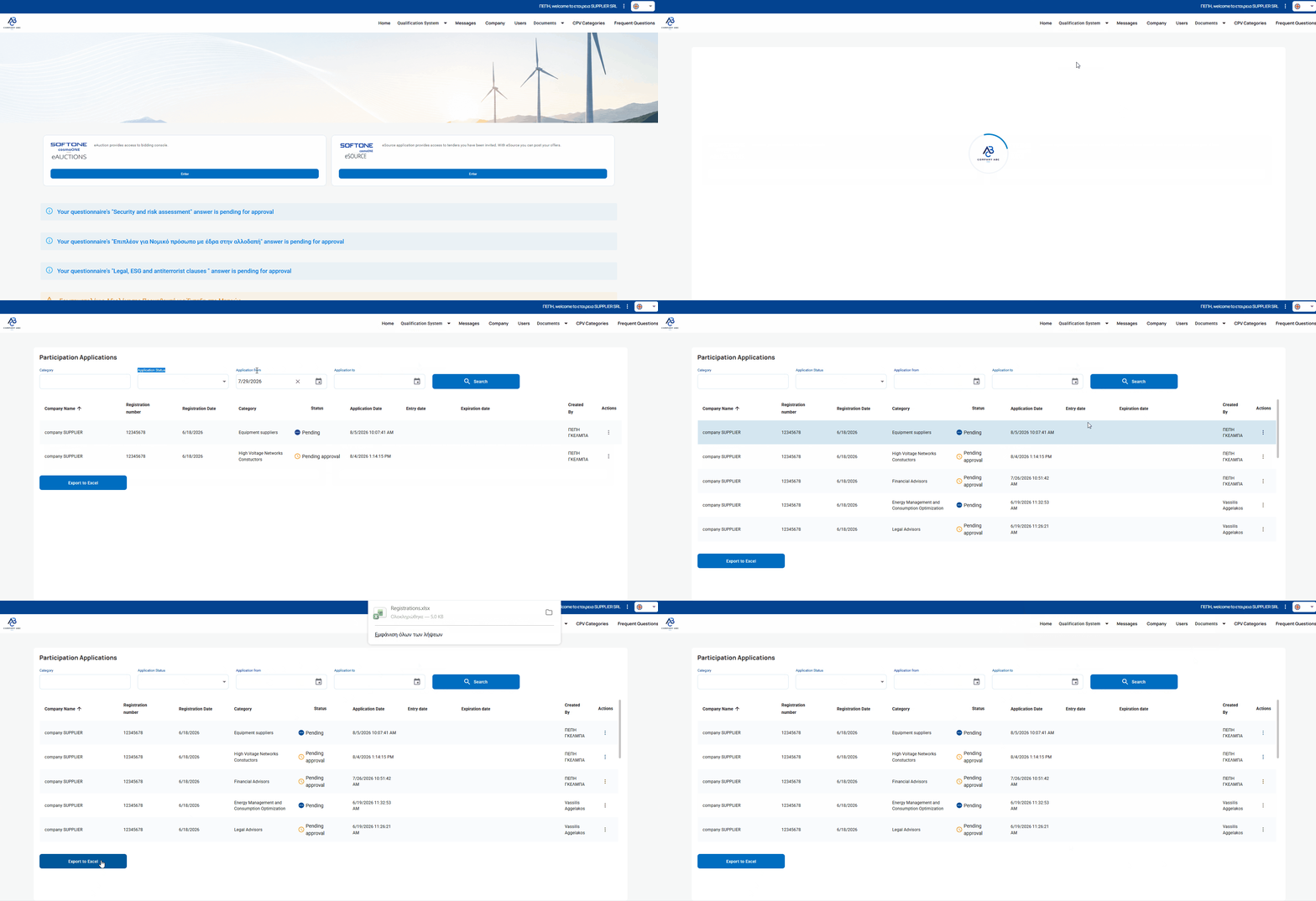
➤ Step-by-step instructions:
1. From the main menu, select «Qualification System».
2. Then, select «Participation Applications» go to the relevant page.
3. At the top of the screen, use the available search filters, such as:
- Category
- Application Status (Approved, Rejected, Pending approval, Pending)
- Application (From – To)
4. After setting the desired criteria, click «Search» to display the results.
In the table displayed, locate the application you are interested in. Each row includes:
- Company Name
- Registration number
- Registration Date
- Category
- Status
- Application Date
- Entry date
- Expiration date
- Created By
You have the ability to sort the main columns of the table, such as Registration Date, Category, Application Date, Enrollment Date, Expiration Date, and Created By. With a single click on the title of the respective column, the applications can be sorted in ascending or descending order.
If you wish to export and save the displayed applications, select «Export to Excel» below the table.
B. Procedure for Managing Participation Applications
📺 Watch the related video/gif on how to check and manage your Participation Applications.
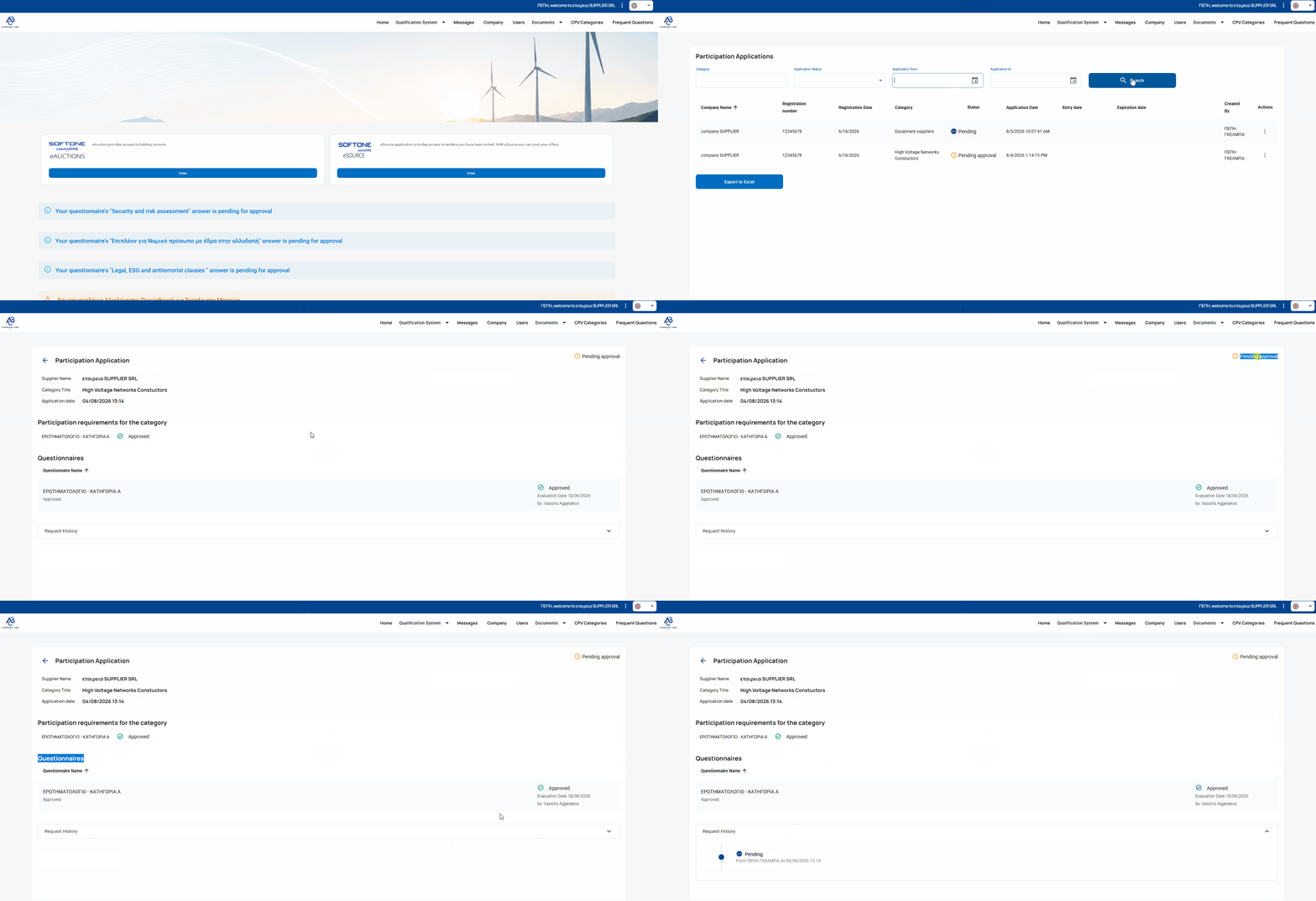
➤ Step-by-step instructions:
1. From the main menu, select «Qualification System».
2. Then, select «Participation Applications» go to the relevant page.
3. Locate the «Actions» column and click on the three vertical dots (⋮).
4. From the pop-up menu, select «View».
5. In case the status of your application is displayed as:
- Approved: No action is required.
- Rejected: No action is required, as the application has been rejected by the Buyer.
- Pending Approval: The application is under review by the Buyer.
- Pending: Action is required on your part.
Specifically, you will need to answer a relevant questionnaire, which you can find either on the home page of the application or by selecting the «Actions» menu (icon with three vertical dots) on the right side of the row and clicking «View».
6. Completion of Participation requirements for the category:
- Locate the relevant questionnaire in the list.
- Click the «Complete» button located on the right side of the row.
- Fill in all the mandatory fields of the questionnaire and click ‘Submit’. After successful submission the status of the questionnaire is automatically updated to 'Pending Approval’.
For more details, see the article:👉 How can I respond to a questionnaire?
7. To view the Request History of the Application, click the arrow on the right side to expand the relevant section.
The history displays a detailed record of all actions and status changes in chronological order. For each entry, the following are displayed:
- the status of the application,
- the date and time of the action,
- any comments or justification.
This way, you can fully monitor the progress of your application and all related updates.

