



 25
25
👉 This article is related to the article: How can I view documents that are about to expire?
Through the “Documents” menu, you are able to view and download files, as well as upload documents to folders designated by the Contracting Authority. This functionality ensures the systematic organization of all required documents within distinct folders, thereby facilitating the Contracting Authority’s assessment of completeness and accuracy, while simultaneously maintaining a comprehensive archive for your reference.
It should be noted that certain documents—such as those requested through questionnaires you have submitted—are automatically routed to the designated folders set by the Contracting Authority, ensuring that each file is accurately categorized.
1. Viewing and Downloading Documents
📺 Watch the related video/gif for a step-by-step guide on how to view and download your documents.
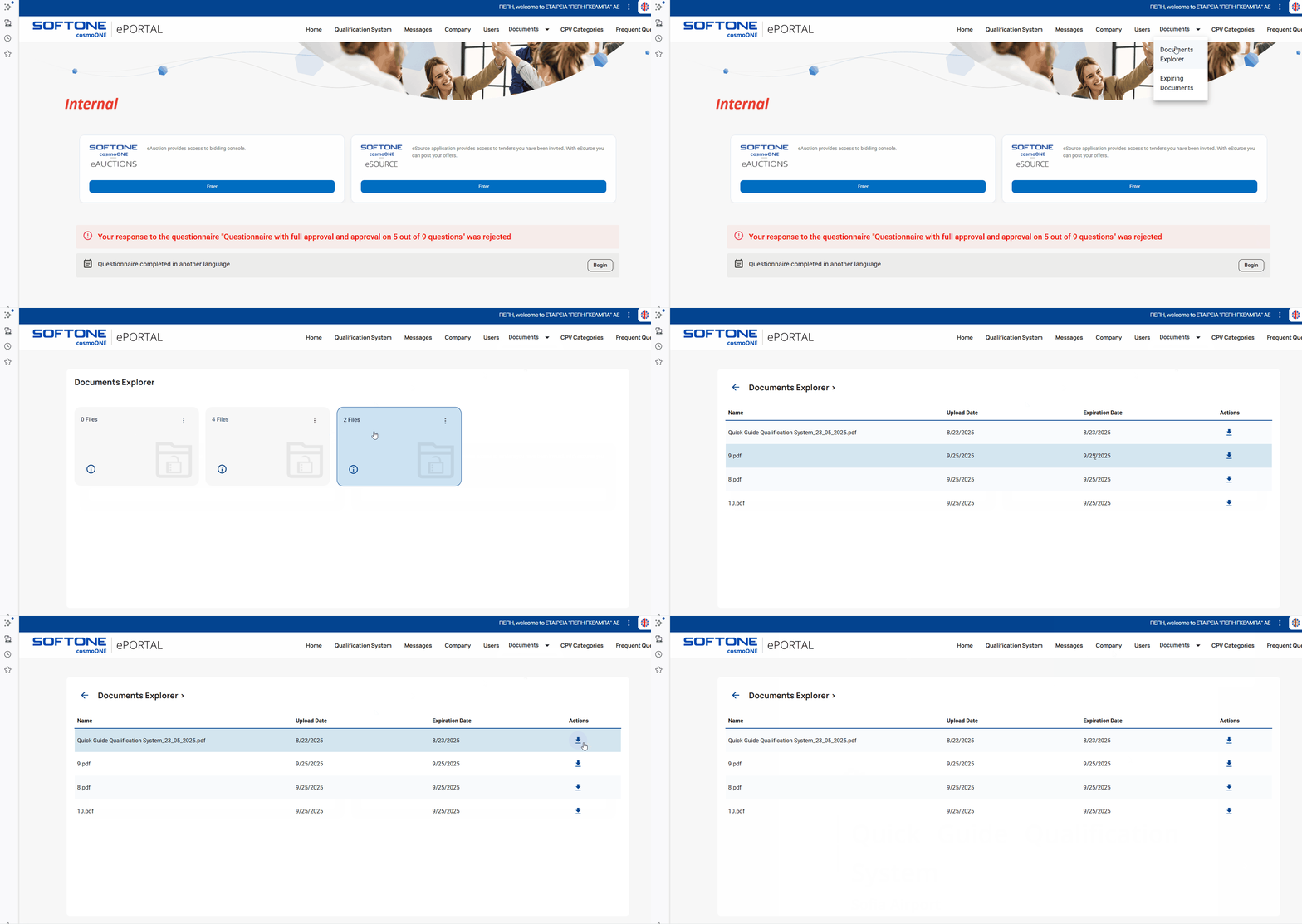
➤ Step-by-Step Instructions:
1. From the main menu, select “Documents”.
2. Next, select “Documents Explorer”. The screen will display all folders created by the Contracting Authority for you. For each folder, the folder name and the number of files it contains will be shown.
3. Click on a folder to view the files it contains. For each file, the following information is displayed: File name, Upload date, and Expiration date.
4. To download a file, please click the corresponding icon located in the “Actions” column.
2. Document Upload
📺 Watch the related video/gif for a step-by-step guide on how to upload your documents in the application.
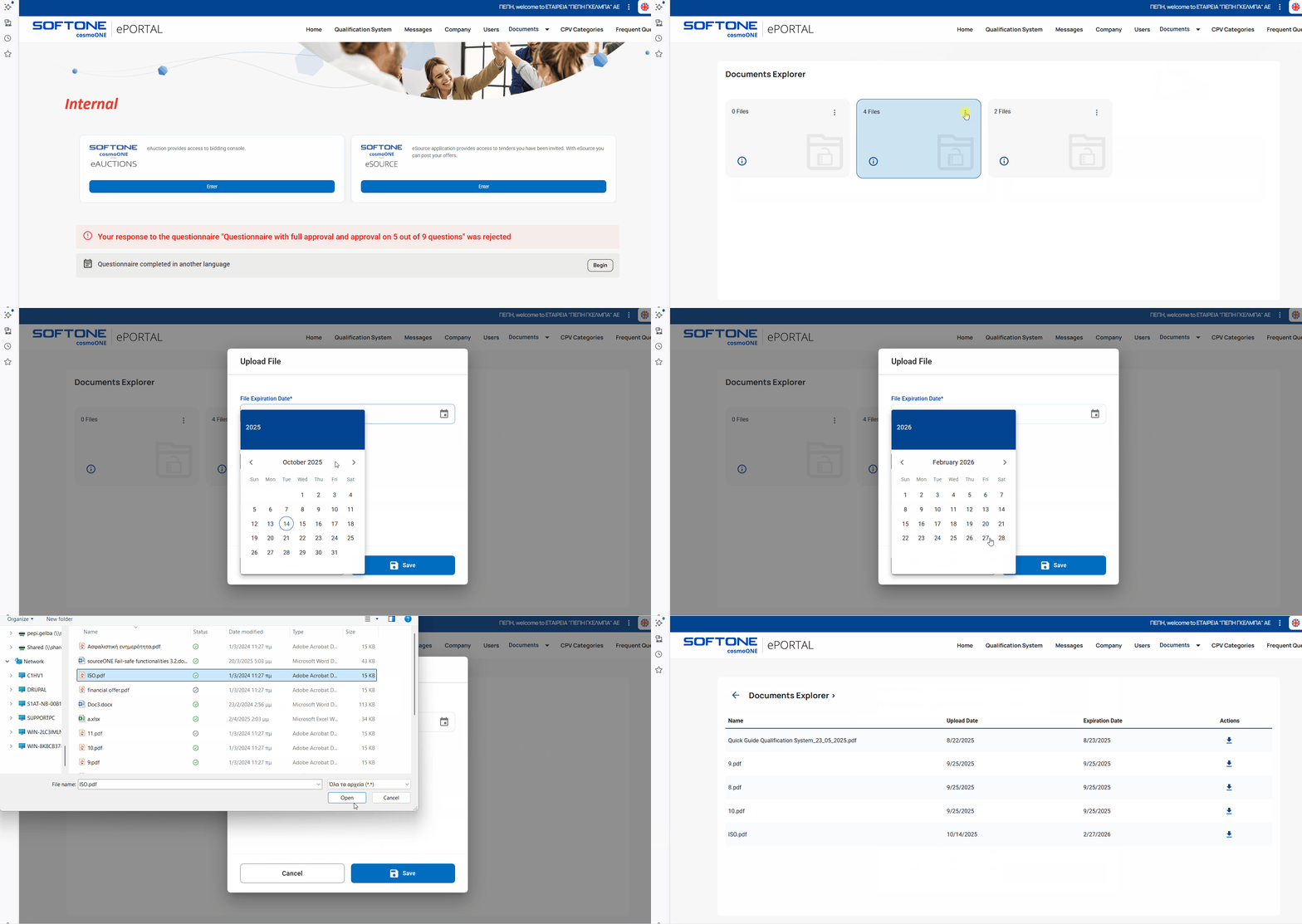
➤ Step-by-Step Instructions:
1. From the main menu, select “Documents”.
2. Next, select “Documents Explorer”.
3. Click on the three vertical dots (⋮) located at the top right corner of the folder.
4. From the pop up screen please select “Upload”.
5. Click “Upload File" and select the file you wish to upload.
6. Specify the file’s expiration date, if required by the Contracting Authority.
7. Click on “Save”.
⚠️ If you have previously uploaded a file and wish to have it deleted, you will need to contact the relevant Contracting Authority, who will carry out the deletion on your behalf.

