



 29
29
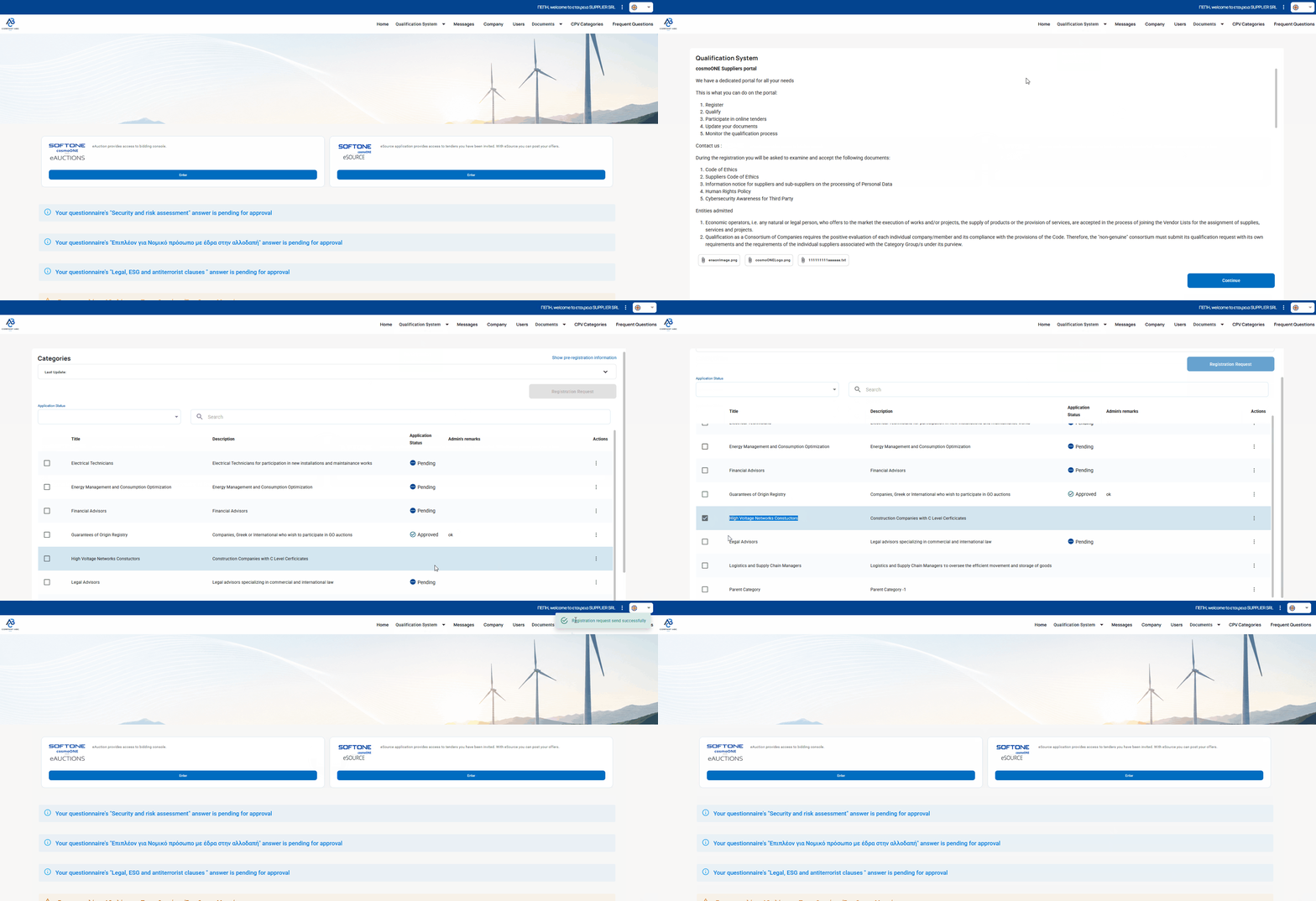
📺 Watch the releted video/gif for a step-by-step guidance on how to submit a registration application to a Category, provided that this functionality has been enabled by the Buyer.
➤ Step-by-Step Instructions:
1. From the main menu, select Qualification system-> Categories.
2. The screen displays the Buyer's instructions regarding your pre-registration in the application, as well as any attached files. To proceed, select Continue.
3. At the top of the page, additional instructions for category enrollment applications are displayed. You can use the available search filters, which detect keywords in the title, as well as the status of your application.
The screen displays:
- The group title.
- Description.
- The status of your application (Pending, Approved, or Rejected).
- Any comments from the administrator.
4. In the 'Actions' column, clicking on the icon with the three vertical dots (⋮) displays the View option. By selecting it, you gain access to additional information and any attached files related to the category you are interested in.
5. To submit an application to join a category, select the tick box on the left of the category and click the 'Registration Request’ button located at the top right.
4. In the 'Actions' column, clicking on the icon with the three vertical dots (⋮) displays the View option. By selecting it, you gain access to additional information and any attached files related to the category you are interested in.
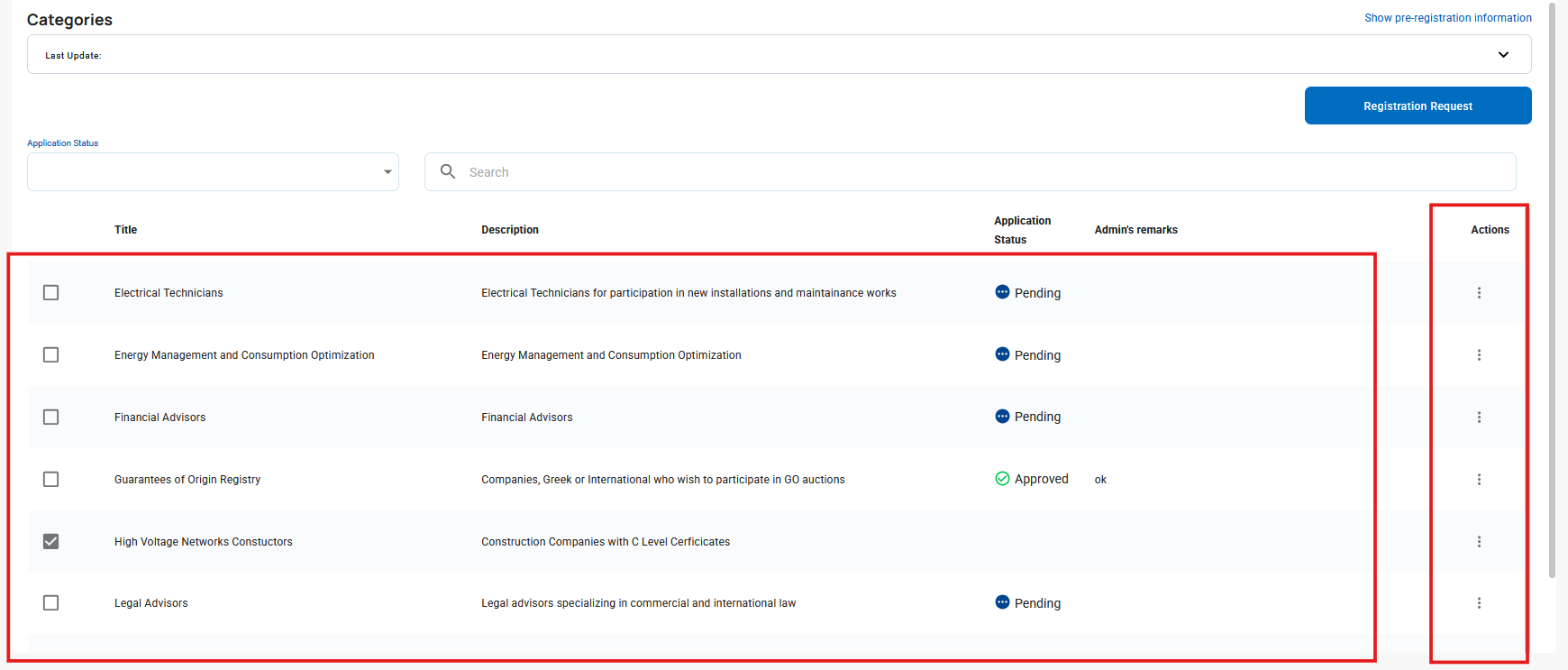
5. To submit a registration to join a category, select the tick box on the left of the category and click the 'Registration Request’ button located at the top right.
⚠️ Important Information:
- If the category includes a questionnaire, this will appear on the application's Home page. Please revisit to complete it.
- Approval or rejection of your application to join the category by the Buyer does not depend on the evaluation of the questionnaire. It is possible for the questionnaire you have completed to be approved, yet your application for the specific category to be rejected. For any changes or clarifications, please contact the Buyer.
For instructions on how to answer questionnaires, please select the article:

