



 22
22
👉 This article is associated with the following article: How can I apply to register under a Category Group?
Responding to a questionnaire requires prior registration and logging into the application using your personal credentials.
Questionnaires may appear at the bottom of the application's home screen, provided they are required by a Contracting Entity. The questionnaires may be displayed in one of the following statuses:
1. New Questionnaires
These are displayed in red color and include a Begin button, which allows you to proceed with completing and submitting the required questionnaire.
📺 Watch the related video/gif for step-by-step guidance on how to complete a new questionnaire.
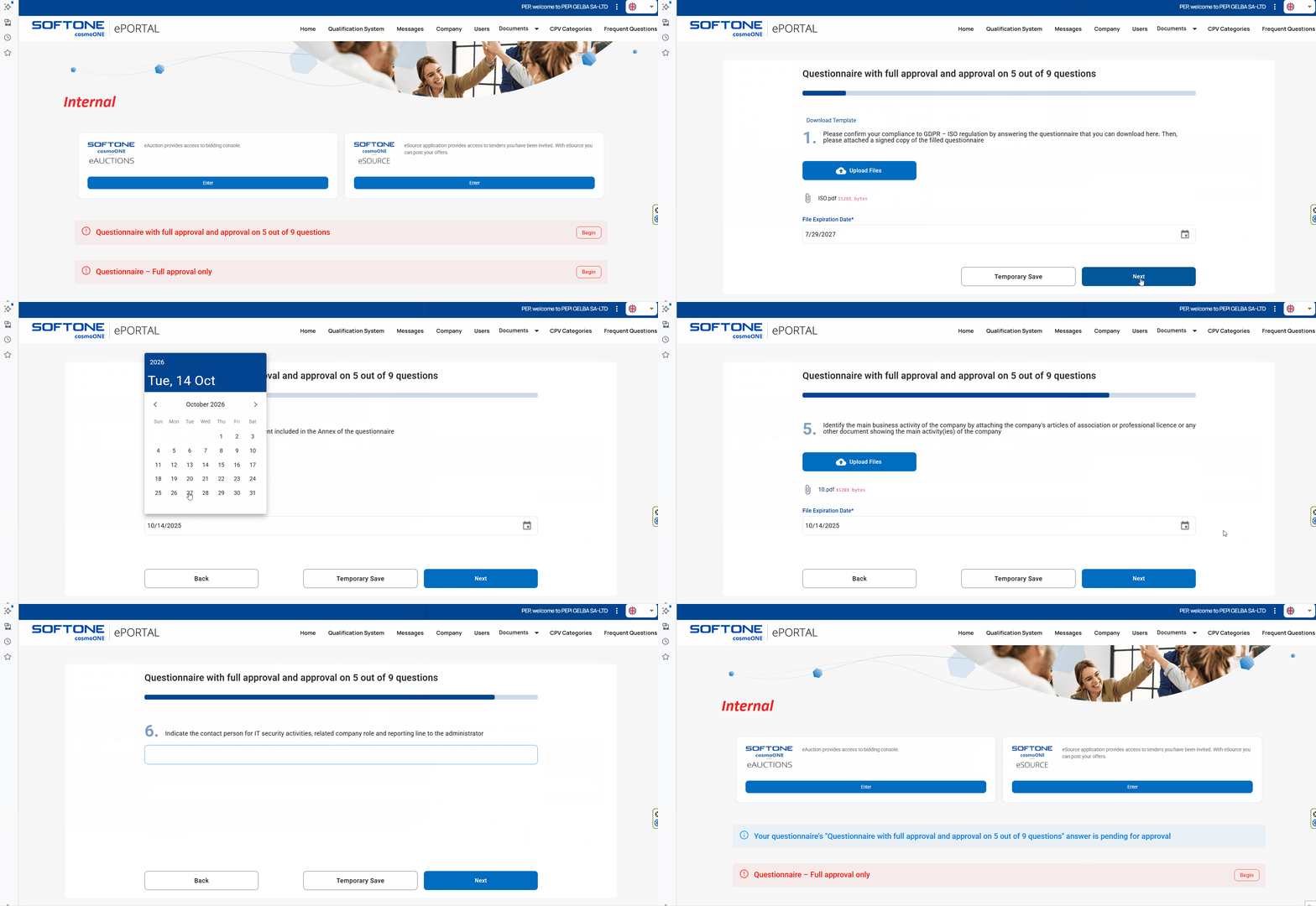
2. Rejected Questionnaires
These questionnaires have been reviewed and subsequently rejected by the Contracting Entity. Questions rejected by the Entity are marked in red.
📺 Watch the related video/gif for a step-by-step guidance on how to respond to a rejected questionnaire.
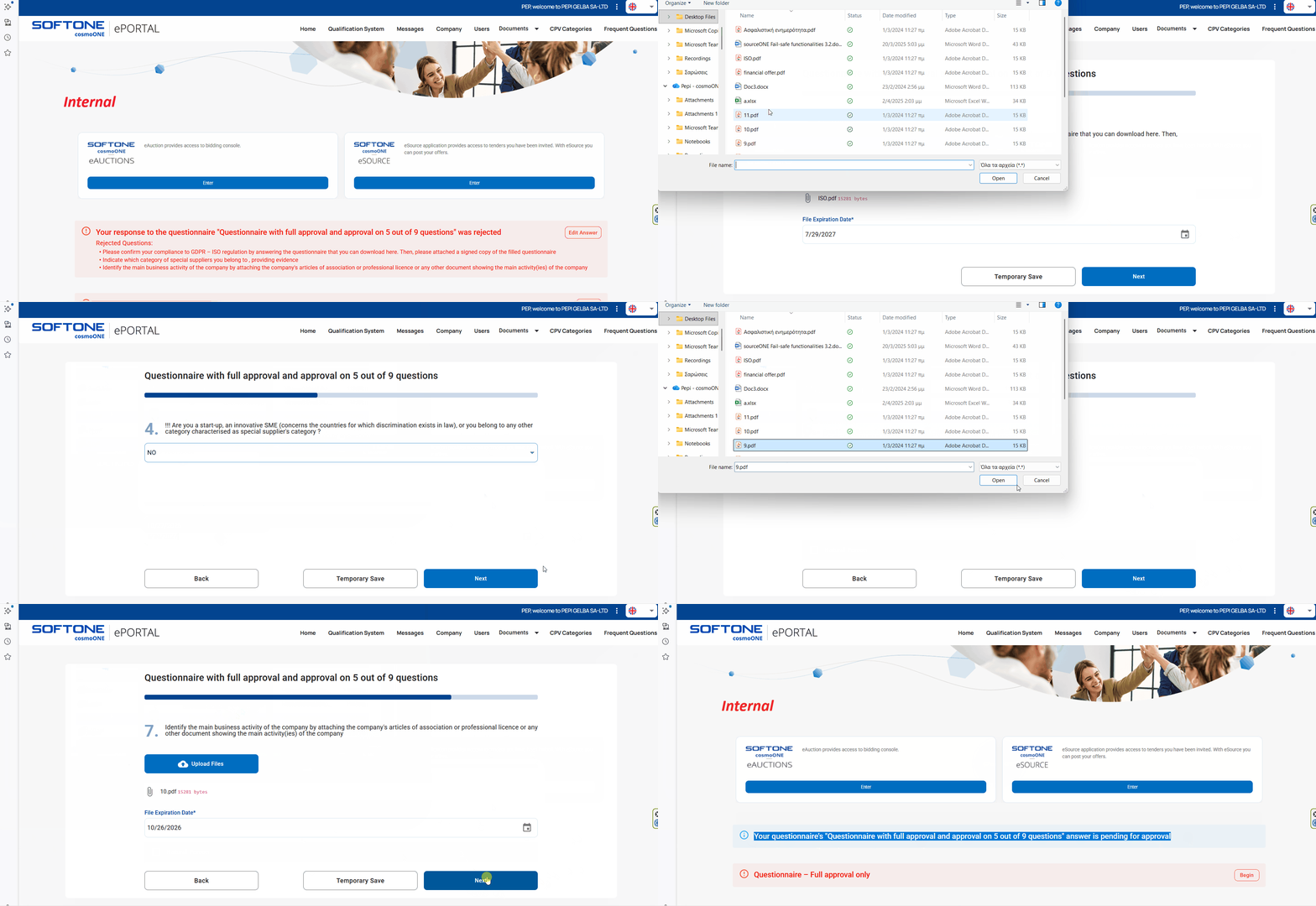
⚠️ Please take note of the following important information:
- If a questionnaire reappears on your home screen marked as "Rejected", this indicates that it has been reviewed and rejected by the Entity. In this case, you have the option to edit it again by clicking the Begin button.
- When editing, all questions within the questionnaire will be displayed. Focus on those that have been flagged by the Entity for modification.
- Please be aware that each new file uploaded to the application will overwrite the previous one. Therefore, it is important to take particular care with both the content of any files you upload, and the expiry dates assigned to them.
- Under no circumstances are you able to edit or resubmit a questionnaire that has already been submitted to the Contracting Entity. Editing and resubmission are only possible if the questionnaire is returned to you by the Entity with a 'Rejected' status.
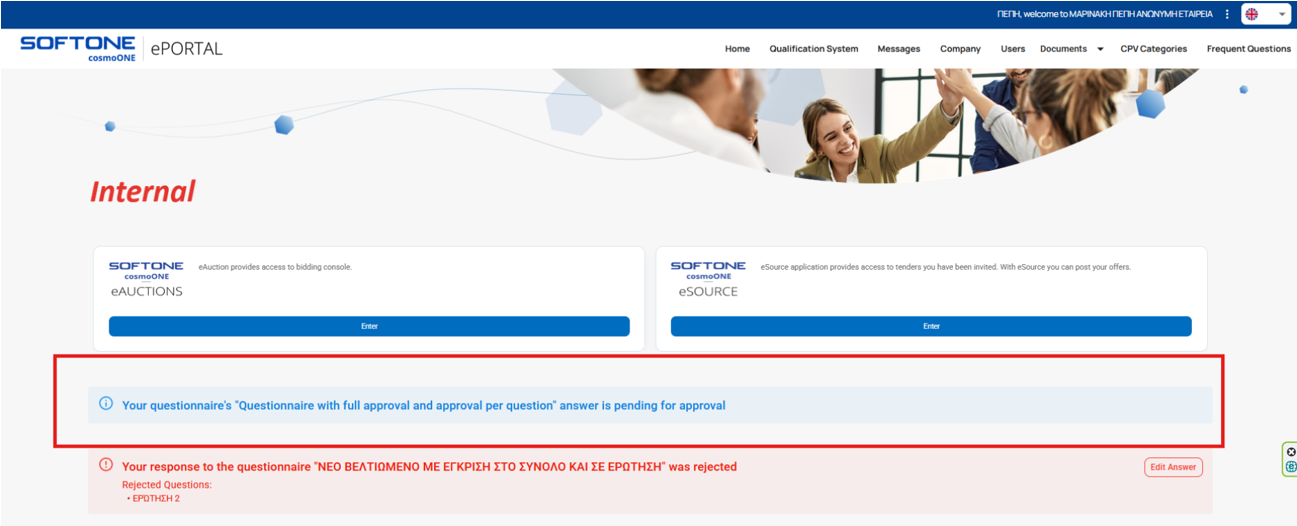
3. Questionnaires Pending Approval.
Questionnaires that have been successfully submitted appear in blue color, as shown in the image below, The blue colour also indicates that the questionnaires are awaiting review by the Contracting Entity.
No further action is required from your end until the review is completed, and the questionnaires are either approved or rejected.
⚠️ The examples of questions, files, etc. shown in this article are indicative, and in all cases the content will vary according to the needs of each Entity.

