



 28
28
👉 This article is linked to the following articles:
Buyer users with the necessary rights can create different Legal Entity Types (e.g., S.A., Ltd., Private Company, Legal Entity, Individual, etc.) based on the organization’s requirements. During registration the supplier is asked to select the corresponding Entity type that represents them.
Each company type can be linked to one or more questionnaires. After registration, suppliers must complete the relevant questionnaires for their type of entity (Legal Entity Types), providing all required information and documents. This part of process ensures that all necessary data is collected so you can determine whether the supplier is suitable for inclusion in the approved supplier registry.
📺 See the related video/GIF for step-by-step guidance on how to create a Legal Entity type.
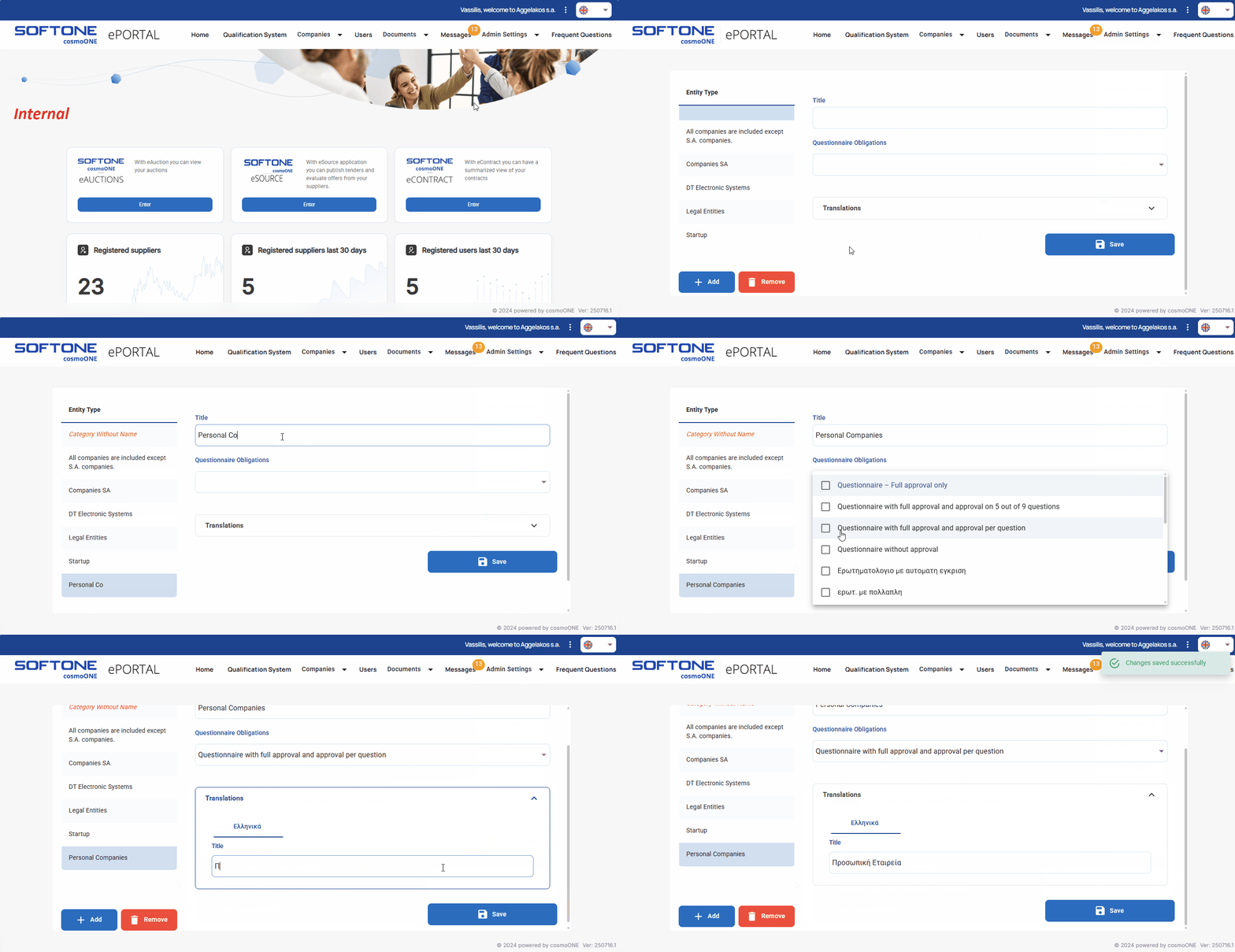
➤ Step by step instructions:
1. Go to the Admin Settings → Legal Entity types menu.
2. Click the +Add button (on the bottom left).
3. From the list on the left, click the new row labeled “Category Without Name” (displayed in red). After making a selection, the red text disappears and the fields you need to complete are displayed on the right.
4. Fill in the “Title” field with the name of the entity type.
5. If required, use the “Questionnaire Obligations” dropdown menu to select the questionnaires that suppliers must complete, by ticking the corresponding checkboxes on the left. The selected questionnaires will be displayed together as titles, separated by a Greek comma (e.g., Questionnaire A, Questionnaire B, etc.)."
6. Click the arrow next to the “Translations” field to optionally add a translated title, so that it is available to users who use the application in another language.
7. Click Save to complete the creation of the entity type.

