



 28
28
👉 This article is linked to the article: Which options are available in the “Qualification System” menu?
Through the “Qualification system”, buyer users with the appropriate rights can assign suppliers to specific category groups without requiring an application from the supplier. Once the supplier has been added to the group, and a relevant questionnaire has been defined for that category, the supplier will be able to start completing it.
📺 See the related video/GIF for step-by-step guidance on how to assign a supplier to a category group.
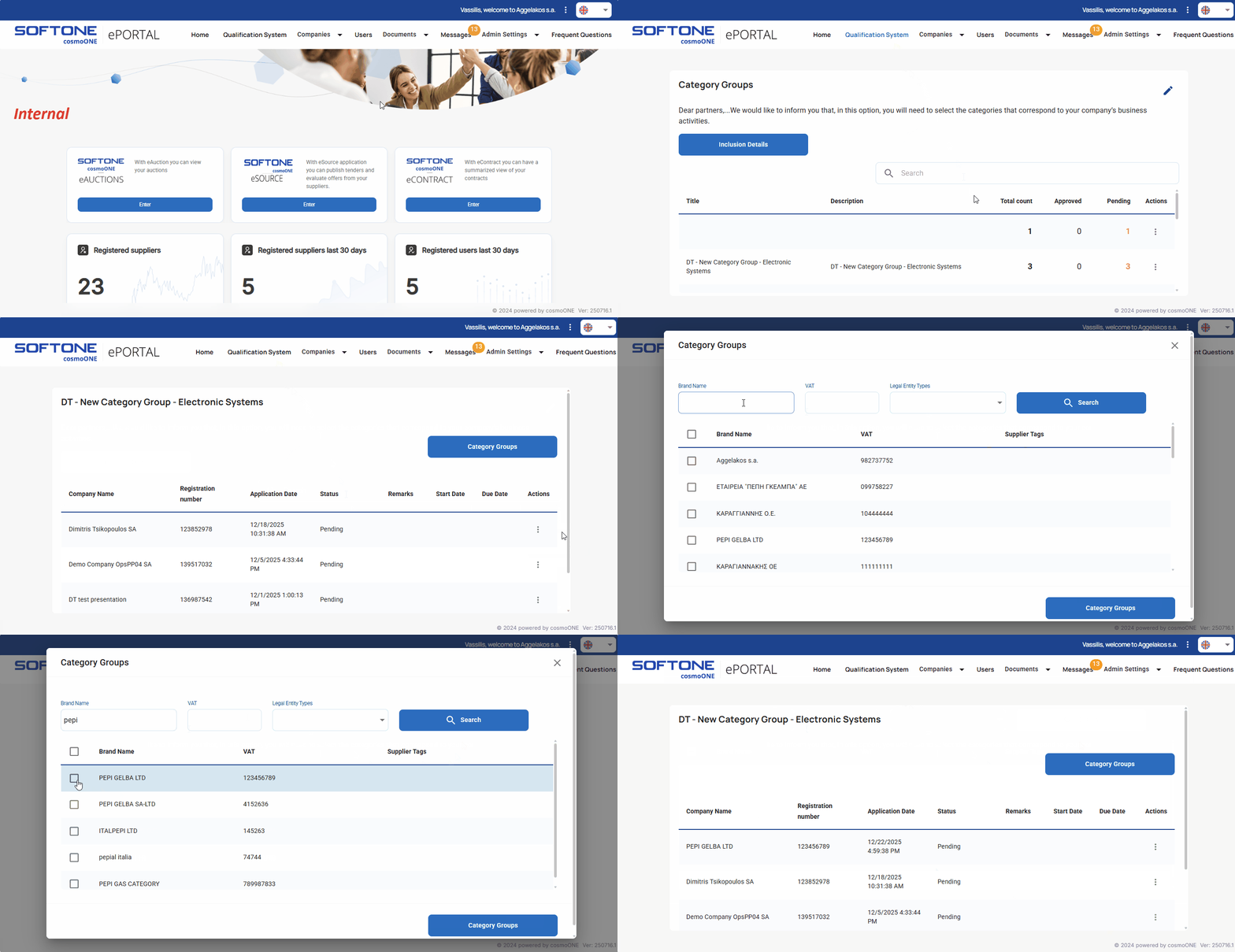
➤ Step by step instructions:
1. Go to the “Qualification system” menu.
2. Find the desired category and click the three vertical dots (⋮) on the right side.
3. From the pop-up menu, select “View”.
4. Click on the Category Groups button.
5. On the supplier search page, locate the supplier using one of the following methods:
-
- By using the Brand name, VAT number, Legal entity Types (drop-down list) on the search engine and then click the Search button.
- By locating the supplier directly from the list.
6. Once you have located the desired supplier, select the checkbox to the left of the supplier’s name. You may also select multiple suppliers to add them to the same group simultaneously.
7. Click on the Category Groups button at the bottom of the list.

