



 29
29
The “Qualification System” menu allows Buyer users with the appropriate rights, to evaluate supplier application request for the assigned Category Groups. Its objective is to create groups that include verified and approved suppliers who have submitted all required information and supporting documents. This ensures that they meet the necessary requirements as members of your company’s official supplier registry.
Users can access functions for managing supplier category groups and their associated processes.
1. Add a general description to the page
You can enter a brief description which will appear at the top of the supplier’s page in the Qualification System section.
📺 See the related video/GIF for step-by-step guidance on how to enter a description.
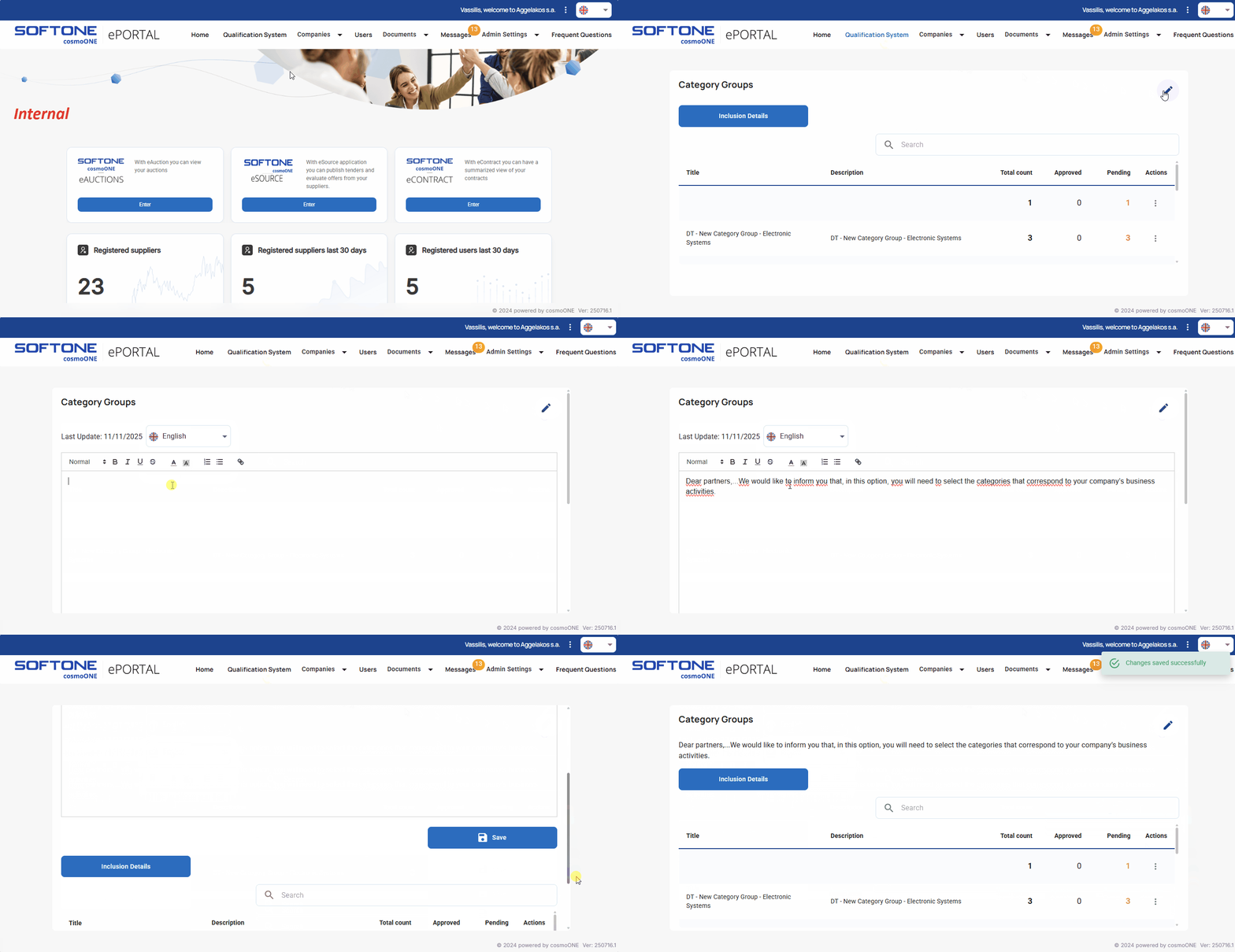
📌 Note: To provide instructions in multiple languages, repeat the text entry and select the appropriate flag from the menu.
2. Inclusion Details
You can provide detailed instructions in text form and attach files to guide the supplier on the next steps for their enrollment in the Qualification System, for example, regarding:
- Identifying the required documents for each category.
- Selecting the appropriate category groups.
- Applying for joining a category.
- Accurately completing the questionnaires.
The Inclusion Details button appears on the supplier’s screen, and when clicked, it displays the information you have entered.
📺 See the related video/GIF for step-by-step guidance on how to enter the details.
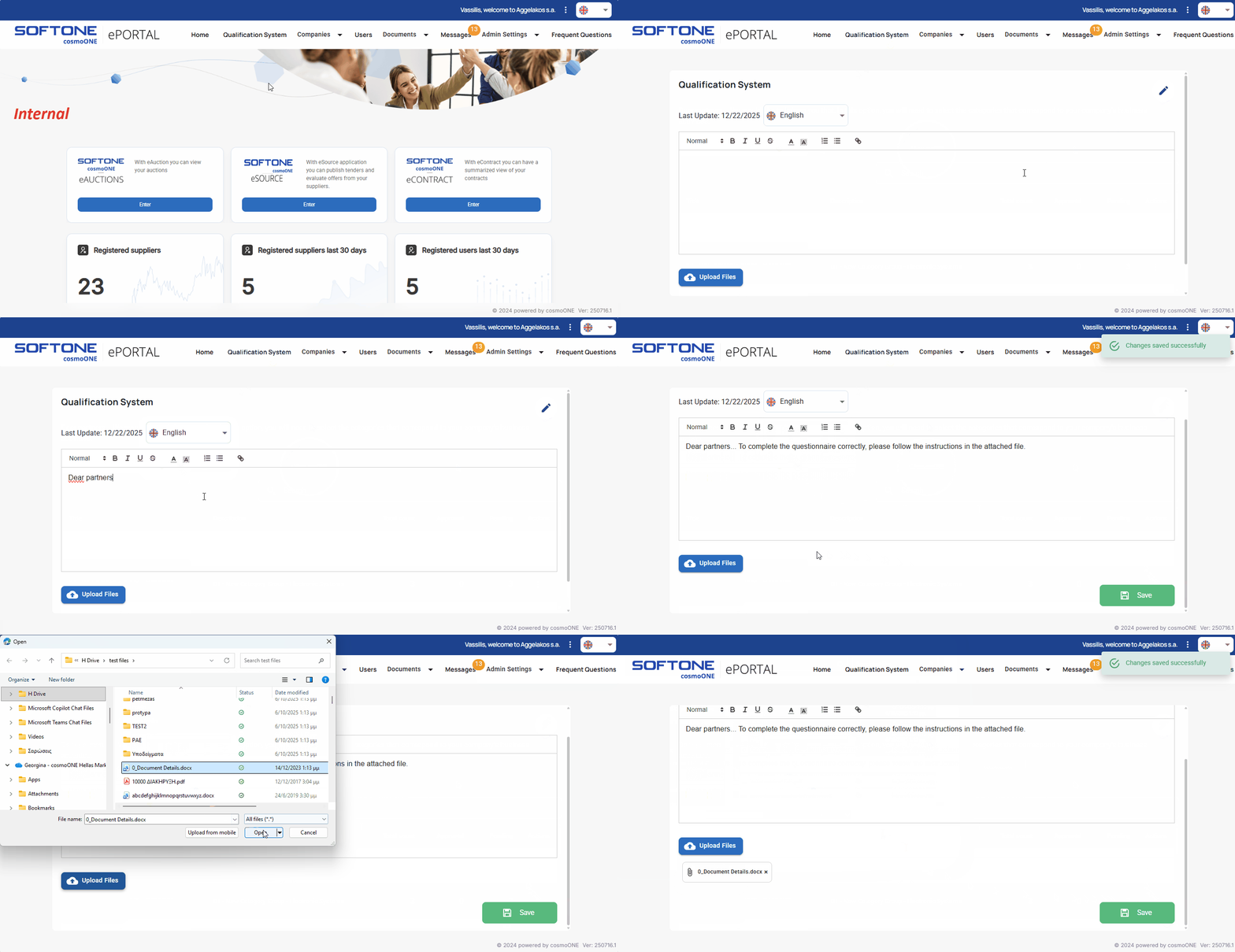
📌 Note: To provide instructions in multiple languages, select the appropriate flag from the menu and repeat the text entry.
3. Category Groups table display and Supplier Evaluation.
The table displays the category groups and the status of supplier joining requests for each one. The status is shown in three columns, indicating the total number of requests, the approved ones, and those still pending.
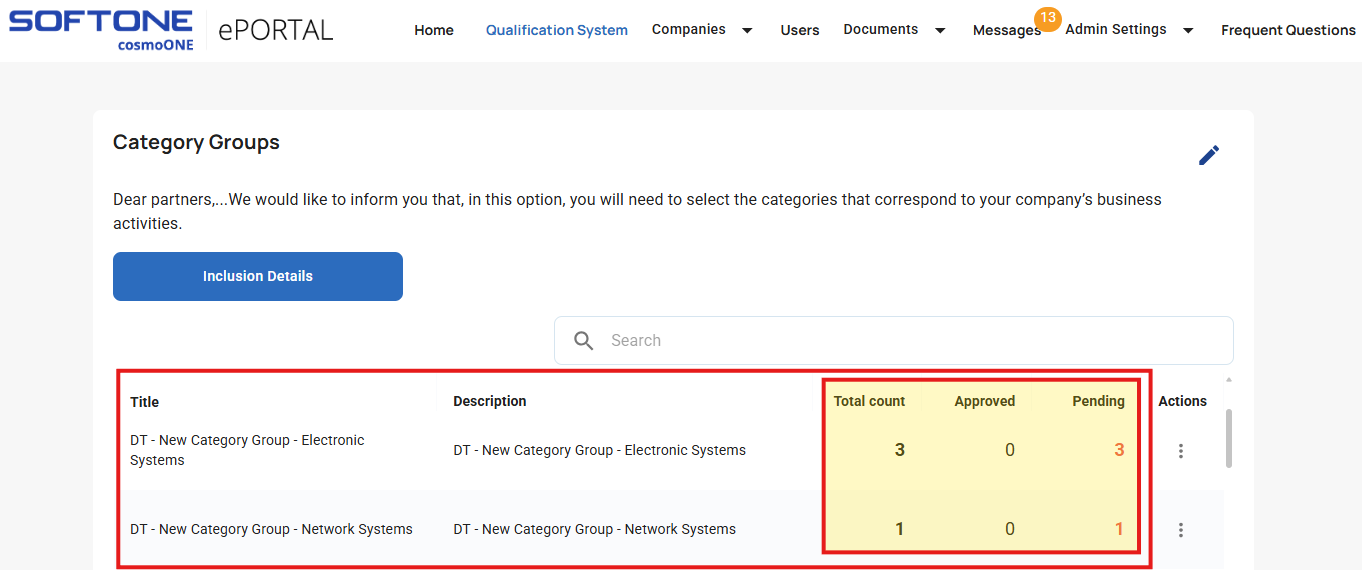
To view companies that have applied to a specific category group:
1. Go to the “Actions” column, and click on the three vertical dots (⋮).
2. Select the pop-up option “View”.
The companies are displayed as shown in the image below. For each company in the group, the table shows the registration number, application date, status, remarks and the start and due dates.
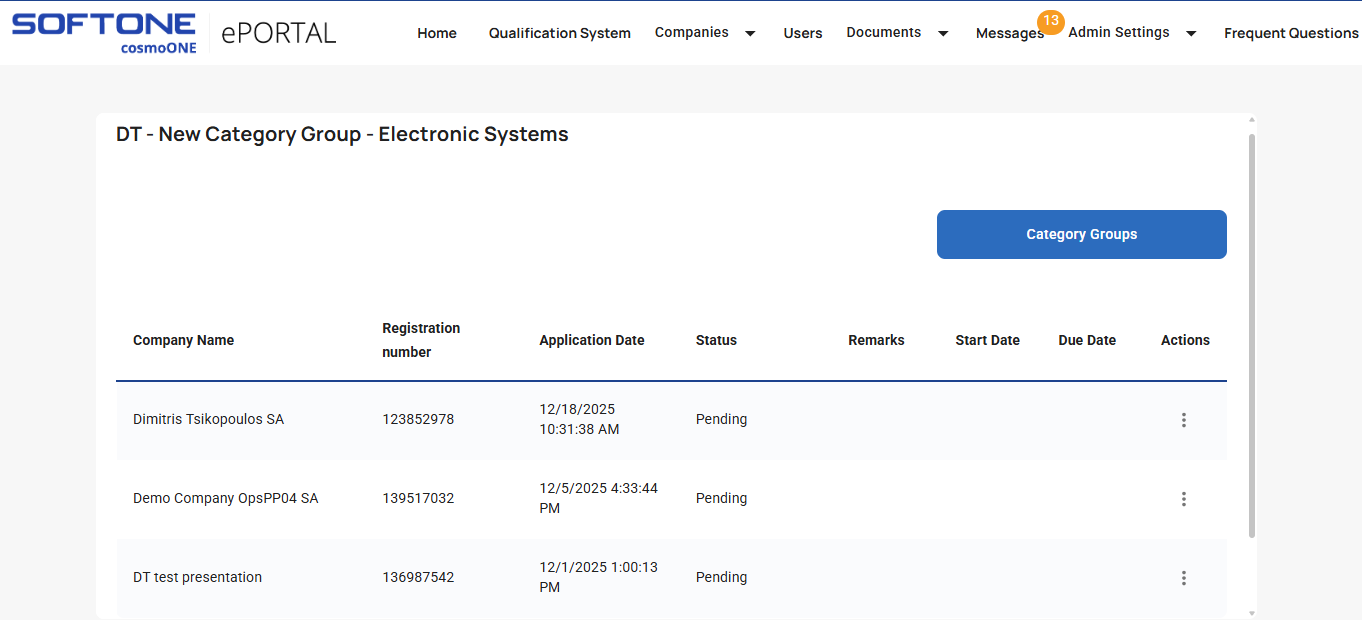
You can also manually add a supplier to the category group by clicking the Category Groups button. For more information and details please refer to the following article:
👉 Registration of Suppliers in a Category Group by the Buyer
Finally, in the last column “Actions”, click the three vertical dots (⋮) to open the menu, where you can evaluate the supplier’s category inclusion request or view company details. To view company details, click View and follow the instructions in the relevant article:
👉 What can I do through the option Registered Suppliers
For detailed instructions on evaluation, refer to the article:
👉 Supplier Application Evaluation in Category Group

