



 25
25
The system provides a messaging feature for communicating with suppliers registered in the portal. Through this function, you can exchange announcements, clarifications, and any other information needed for your processes. You have the ability to:
- Create and send messages to suppliers
- Receive messages from suppliers
1. Creating and sending a new message
📺See the related video/GIF for step-by-step guidance on how to send a new message.
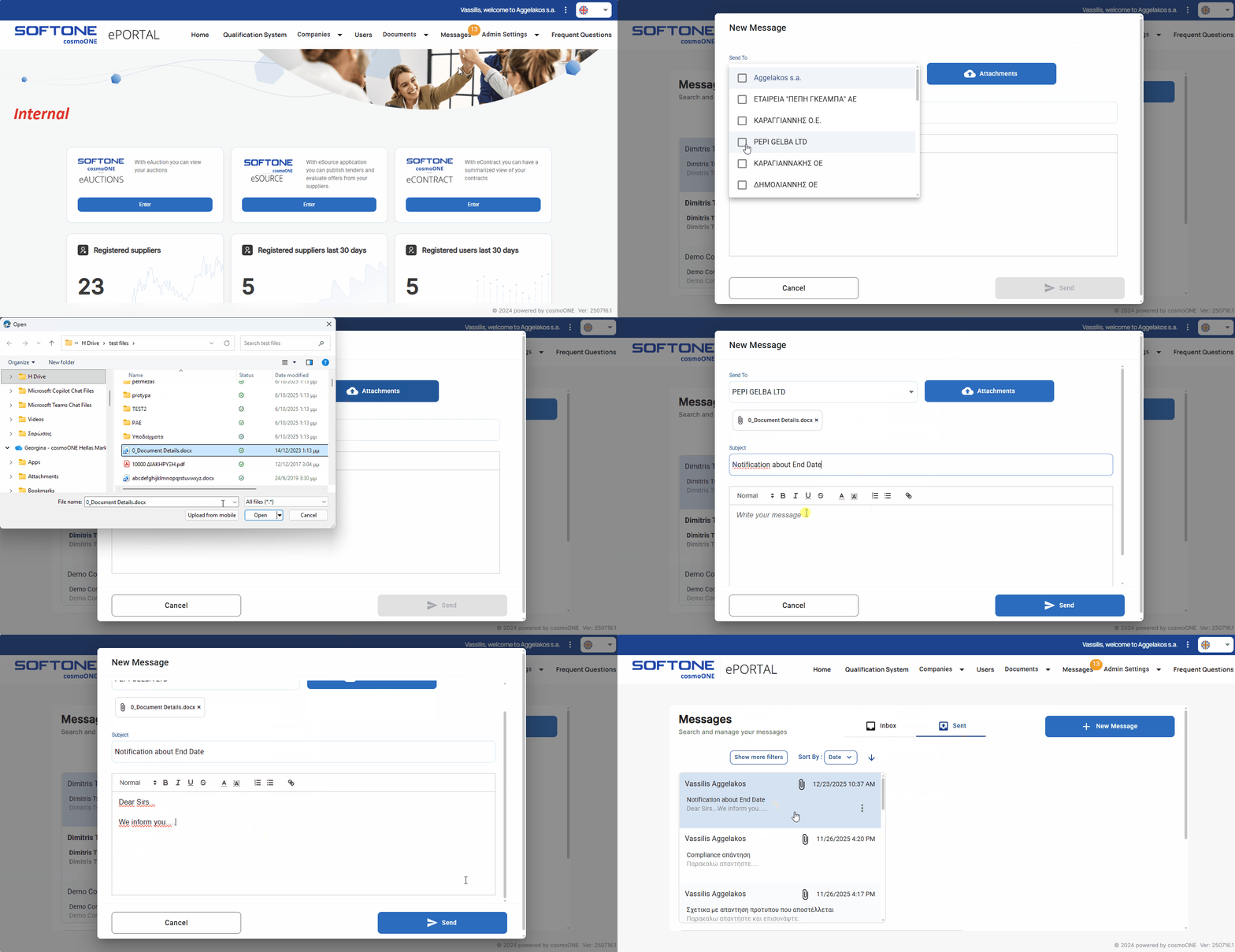
➤ Step by step instructions
1. Click on “Messages” from the main menu.
2. Click on the + New Message button (on the right side).
3. From the drop down list “Send to”, please select the desired company that you wish to contact.
4. To attach a file, click on the Attachments button and upload a file (one file at a time, with a maximum size of 20 MB).
5. Fill in the Subject field and type your message that you wish to send. You can format the text using the toolbar.
6. Click Send or Cancel to abort it.
7. Click on the «Sent» option to view your message.
2. Reply to a supplier’s message
When a new message is received, a numeric indicator is displayed above the “Messages” menu, as shown in the image below:

📺See the related video/GIF for step-by-step guidance on how to reply to a message.
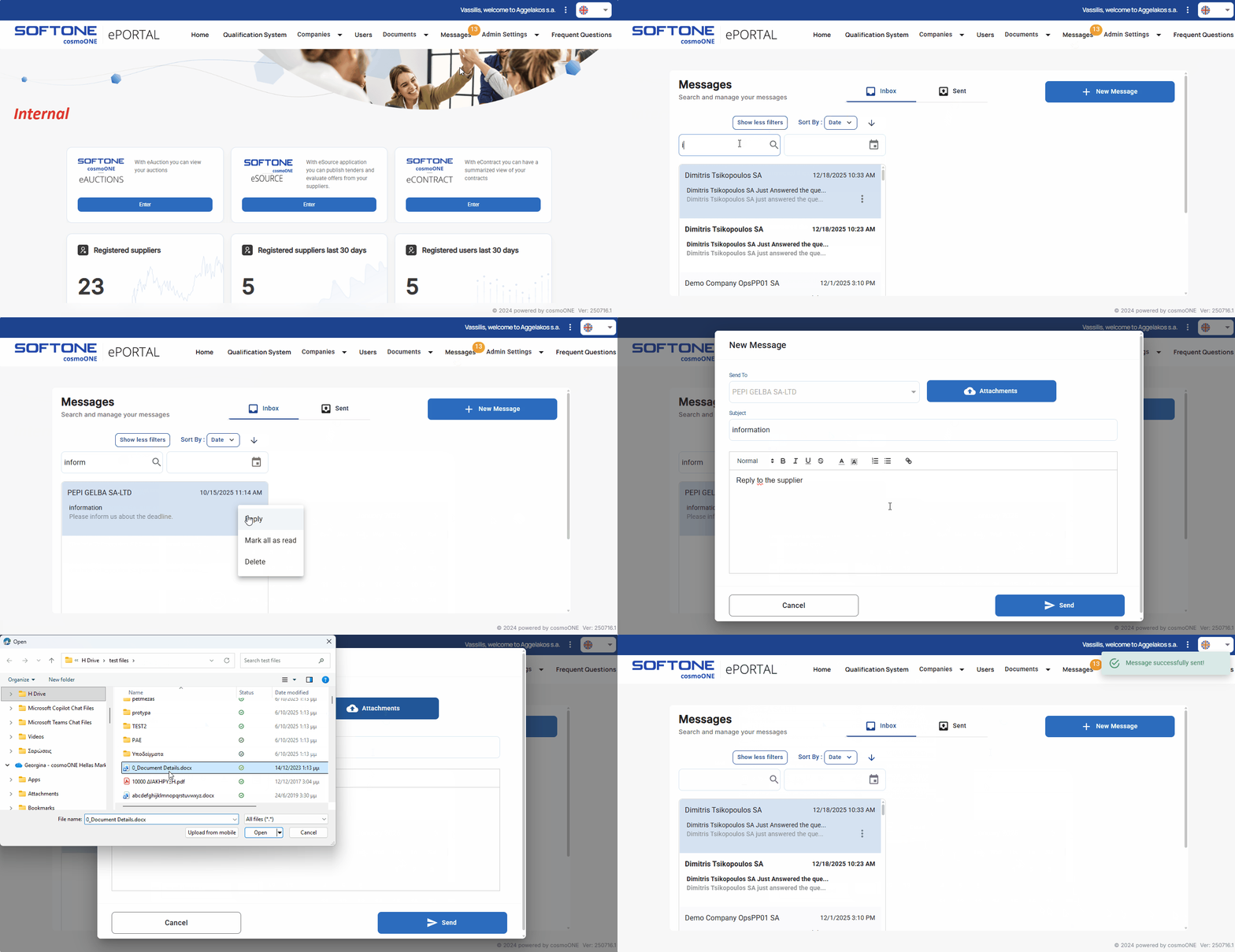
➤ Step by step instructions
1. Click on “Messages” from the main menu.
2. Find the message on the left-hand side of the screen. You can apply filters (keyword, date) or use the sorting options (Sender, Subject and Date).
3. Click the three vertical dots (⋮) and from the pop-up option menu, select “Reply”.
4. You can upload files (one at a time, 20 MB), by clicking on the Attachment button on the right side.
5. Fill in the Subject field and type your message you wish to send. You can format the text using the toolbar. Although you can change the subject in the Subject field, this is not recommended.
6. Click Send or Cancel.
7. Click on the “Sent” option to view your message.
📌Note: You can view each supplier’s messages through the “Registered Suppliers”, by clicking the pencil icon in “Actions” and then selecting the “Messages” tab.
For more information, please see the following article:
👉 What can I do through the option “Registered Suppliers”?

