



 30
30
👉 This article is linked to the following:
- Which options are available in the “Qualification System” menu?
- How to evaluate supplier questionnaires
The “Registered Suppliers” section displays the list of suppliers who have completed their registration on your company’s portal.
If you have the appropriate rights, you can:
- View or edit the supplier’s company and user information.
- Review and manage all actions performed by the supplier on the portal (e.g., sending messages, completing questionnaires).
- Evaluate each supplier each supplier using a 1-to-5 star rating based on the criteria you have defined.
📺 See the related video/GIF to discover some of the features available in the “Registered Suppliers” section.
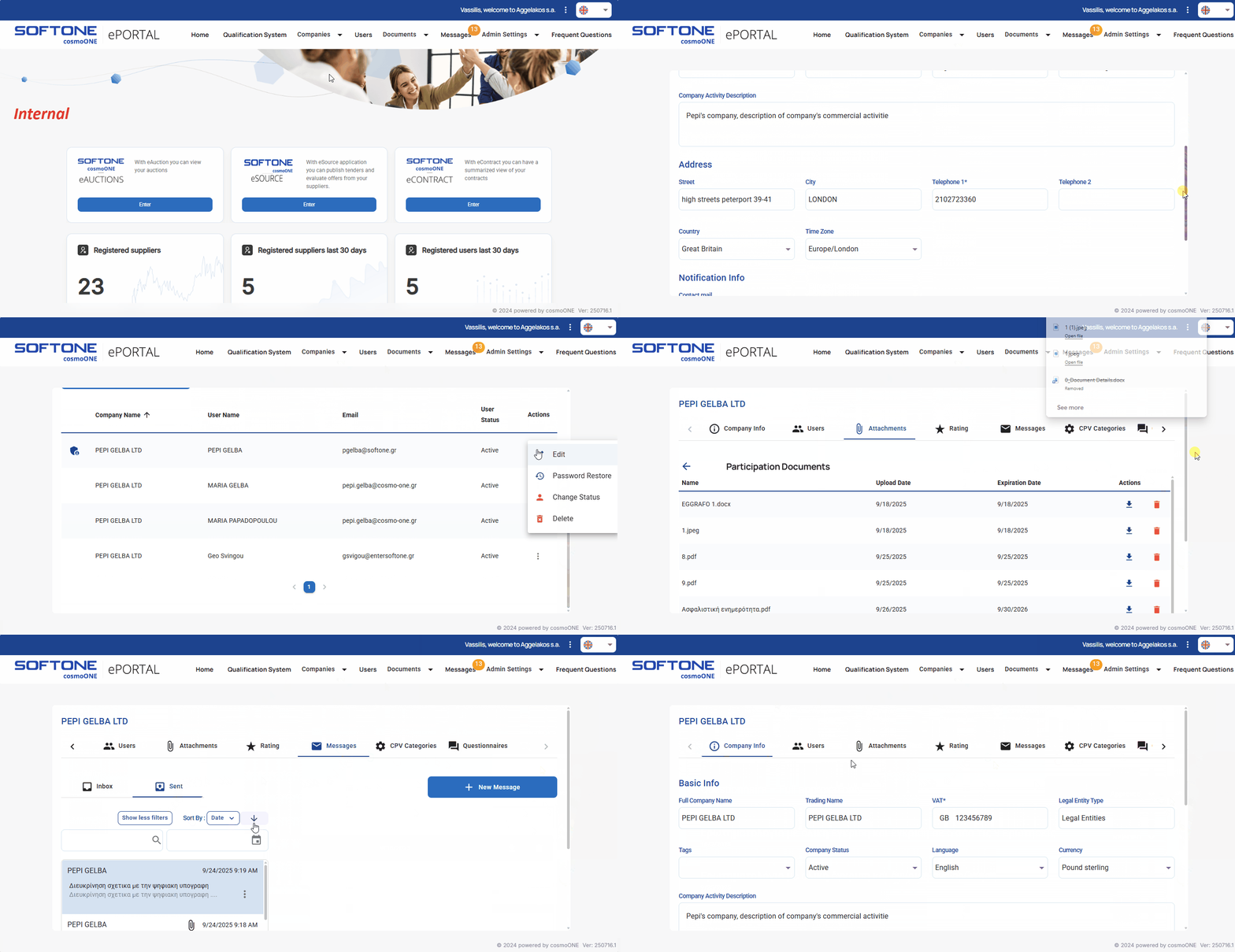
➤ Step by step instructions:
1. From the main menu select Companies → Registered Suppliers. The list of suppliers is displayed.
2. You can search for suppliers using filters such as “Brand Name” and “VAT” or select additional filters by clicking the “Show more filters” button. You can also locate the supplier directly from the provided list.
📌Note: The first company on the list is always the buyer’s own company.
3. You can export supplier company information to an Excel file. To do so, select the corresponding checkboxes on the left (for all or selected companies) and click “Export Companies in Excel” button (at the bottom left). The exported file will include each company’s basic details, CPV categories, supplier’s tags, and average evaluation score. Each of these options is explained in more detail below.
4. To view or edit a company, click the pencil icon in the “Actions” column. This will open the company’s tabs: Company Info, Users, Attachments, Rating, Messages, CPV Categories, Questionnaires which are described in detail below:
1. Company Info
All the company’s basic information is displayed, including the company name, VAT number, mailing address, contact details, language, currency, and time zone. If you have the appropriate rights, you can review and edit this information. In addition to the basic details, the following fields are especially important:
- Tags: If “Supplier Tags” have been configured in “Admin Settings”, you can assign any number of them by selecting the corresponding checkboxes. Tags provide an additional way to categorize and evaluate suppliers.
- Company Status: This field allows you to monitor the company’s status, with options for Active / Inactive. Only active suppliers can access the portal.
- Contact mail: The company’s specified email addresses are displayed. These addresses receive notifications about new tenders via invitations sent through the eSource application. For more information on managing emails, refer to the supplier instructions provided in the following article:👉 How do I update the email addresses that receive notifications for new tenders?
2. Users
The list displays all registered users of the company including their username, email, and user status (Active or Inactive). Search filters are available at the top of the page to help you for quickly locate users, with the “User Status” filter set to “Active” by default.
With the appropriate rights, you can manage each user through the dropdown menu accessed by clicking the three vertical dots (⋮) in the “Actions” column. The available options include:
- Edit: Edit the user’s personal details and role.
- Password Restore: Send an email to reset the user’s password. For more information on this process, refer to the supplier instructions in the following article:👉 How can another user within my company reset my password?
- Change Status: Option to activate or deactivate the user.
- Delete: The option to delete a user is temporarily unavailable.
3. Attachments
You can view the folders created by your company, which contain files or documents uploaded by the supplier on the portal. By clicking a folder, you can see the files it contains, along with their upload and expiration dates, giving you an overview of their validity. If you have the appropriate rights, you can perform actions for each file through the pop-up menu when you click on the three vertical dots (⋮) in the “Actions” column. The options include:
- Download: Ability to download the file, if this option has been enabled for the folder.
For more information on folder settings, please refer to the article:👉 Creating Folders - Edit: Ability to modify the file’s expiration date.
- Delete: Ability to delete the file.
4. Rating
You can rate the supplier from 1 to 5 stars, based on the criteria you have defined. For more information, you can refer to the article:
👉 How to evaluate suppliers using the Rating System
5. Messages
All communications sent to or received by the company within the system are displayed. By clicking the + New Message button, you can compose a new message addressed exclusively to that company.
⚠️ Incoming and outgoing messages are displayed as they would appear as if you were logged in with the supplier’s credentials, because you are viewing the company’s tab.
For more information on messaging in the application, please refer to the article:
👉 How can I communicate through the Messages menu?
6. CPV Categories
The CPV categories selected by the supplier are displayed. For each category you can click the three vertical dots (⋮) in the “Actions” column to open a pop-up menu with the “Remove” option, which allows you to remove that category from the supplier.
By clicking the CPV Categories Editing button, you can view / modify the supplier’s category selection.
5. Questionnaires
A comprehensive list of all questionnaires completed by the supplier is displayed, providing full access to their responses and uploaded files. Depending on the current status of each questionnaire, you can perform the following actions:
- Approve.
- Reject.
- Manage each question individually, with the option to approve or reject specific responses.
Each entry includes basic information, such as the questionnaire title, response date and status. The status indicators are as follows:
- Completed: Completed and submitted by the supplier.
- Approved: Evaluated and approved by the Buyer.
- Rejected: Rejected, either partially or entirely, during the evaluation.
By clicking on the questionnaire title, the questionnaire is fully expanded, with questions and answers clearly separated, making it easier to review and manage the evaluation.
For more information on approving or rejecting questionnaires, you can refer to the article:
👉 How to evaluate supplier questionnaires?
⚠️ The tabs above contain the supplier’s company information and can be viewed in full. We would recommend treating all supplier-provided data as strictly confidential. If any changes are needed, we suggest confirming them with the supplier first, before editing, overwriting, or updating any information.

