



 17
17
The “Expiring Documents” section provides a complete overview of all supplier documents that are approaching or have passed their expiration date. Through this feature, you can:
- Monitor all expiring documents, without having to check each folder individually.
- Identify suppliers with documents that are due to expire within a specific period.
- Send immediate notifications to suppliers to inform them about the upcoming expiration of their documents.
This ensures better compliance management and reduces the risk of delays or gaps in the submission of critical documents.
⚠️ Requirement for correct functioning: When creating folders, the “Needs Expiration” option must be enabled. This ensures that, during the upload of each file, suppliers are obligated to specify the document’s expiration date.
Without this information, the system cannot identify which documents have expired.
For more information, please refer to the article:
📺 See the relevant video/gif for how to view overdue documents and send a notification.
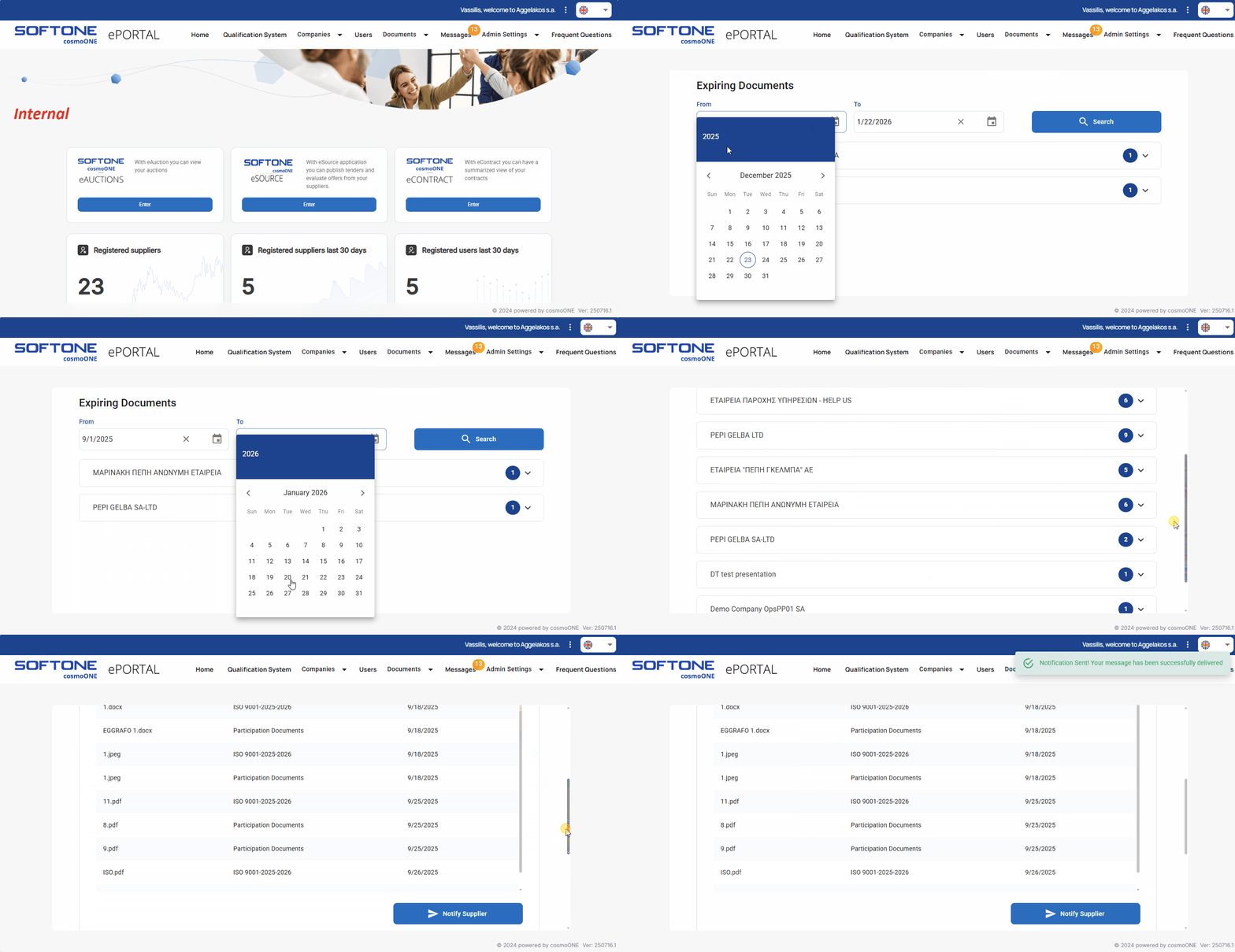
➤ Step by step instructions:
1. From the main menu go to Documents → Expiring Documents.
2. Use the expiration date filters (From – To) to search for files. By default, the last month is displayed. After entering the desired dates, click the Search button.
3. Each row in the results, represents a company with documents expiring during the selected period. A number in a blue circle next to the company name indicates how many documents are overdue.
4. Click the arrow to the right of the company to view its documents. In the expanded view, the file name, category name, and expiration date are displayed.
5. To notify the supplier of an upcoming expiration, click on the Notify Supplier button. A pop-up window will display the recipients email addresses.
📌Note: The notification text is generated based on the email template “Expiring files Notification” which is located in Admin Settings → Email Templates.
6. Click Continue to complete the procedure or Cancel to abort it.

