



 22
22
👉 This article is linked to the article: Available Question Types in a Questionnaire
The system provides the capability to create and store documents. It consolidates all critical files - such as certificates, contracts, and compliance documents (e.g., ISO, GDPR) - into dedicated folders, making it easier to verify their completeness and validity.
Suppliers can also:
- track which documents have already been submitted, and which are still pending.
- upload new files without time-consuming procedures or by email exchanges.
- ensure that their files are stored in an organized manner and in the correct location.
These folders can be configured with the following properties, for example:
- Supplier Information Folders: They include files such as user guides, application templates, technical forms, and other related documents. They provide full traceability by recording when files are stored and maintaining an action log for each supplier.
- Internal use Folders: Visible only to users within the Buyer’s organization. These folders are used to store documents that must remain inaccessible to suppliers.
- Folders containing documents from questionnaire responses: When using the document collection feature via questionnaires, responses that include files are automatically stored in the corresponding folder, with a separate subfolder created for each supplier. The buyer can also upload files on behalf of suppliers.
- Folders with the ability for suppliers to view or download files: You can define whether suppliers have access to a specific folder and whether they can only view the file names or also download the files.
- Folders with the ability for suppliers to upload files: If a folder is not designated for internal use only, suppliers can upload files, which will be stored in a subfolder named after their company.
Create a Folder
📺 See the related video/GIF for step-by-step guidance on how to create a folder.
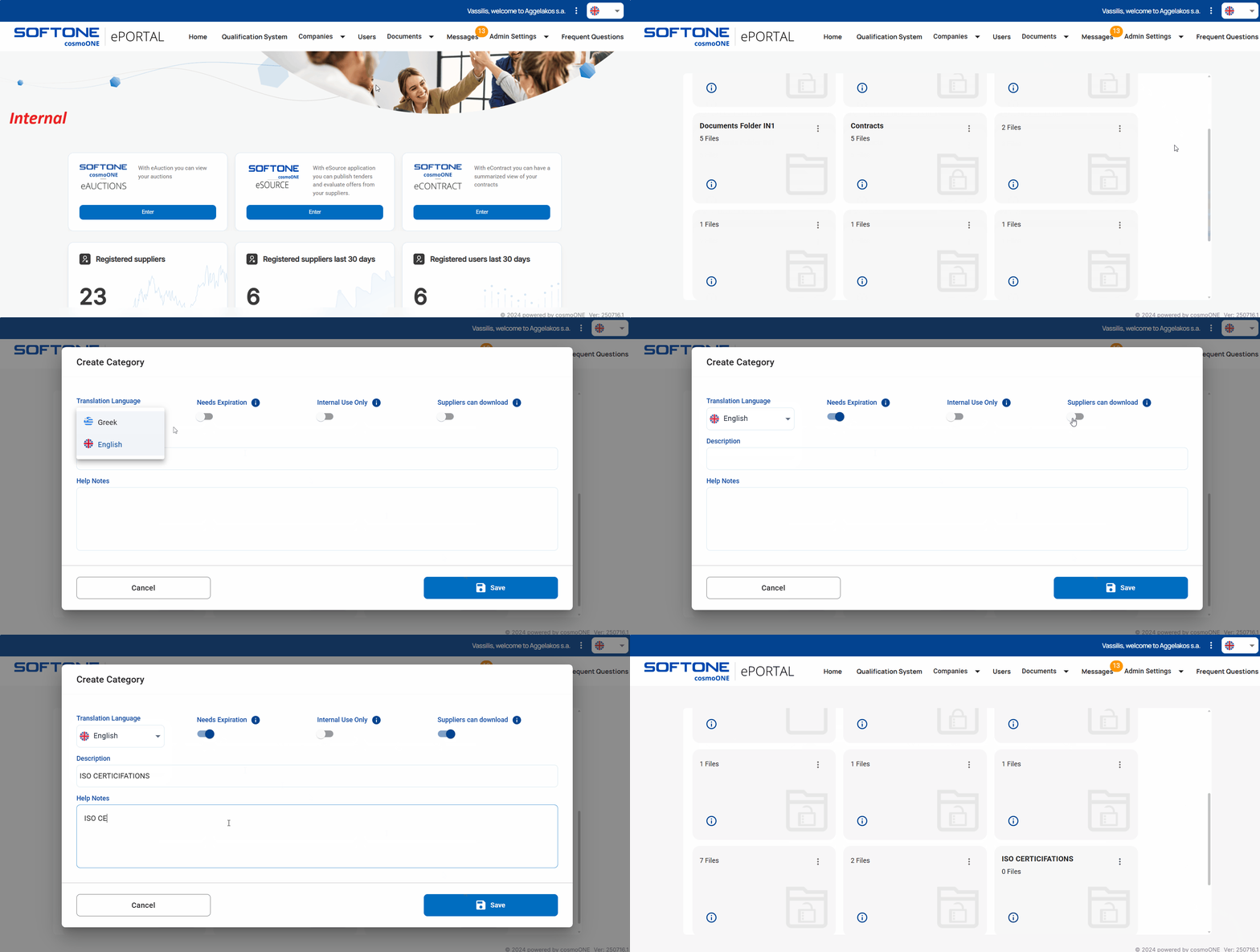
➤ Step by step instructions:
1. Go to the Documents → Documents Explorer section.
2. Select “Add new Category” (last folder option at the bottom of the page)
3. Specify the following parameters:
-
- Translation Language: Select the language in which the folder will be displayed to suppliers.
- Needs Expiration: When this option is enabled, suppliers must enter an expiration date for the documents they upload.
- Internal Use Only: When this option is enabled, the folder is visible only to users within the creator’s entity (the buyer);If it is disabled, the folder is also visible to suppliers.
- Suppliers can download: When this option is enabled, suppliers can download the documents in the folder. If it is disabled, they will only be able to view the file names.
⚠️ Important note on creating a folder for use with a questionnaire:
If the folder contains documents that are included in a questionnaire to be completed by suppliers, both options must be enabled:
- Internal Use Only
- Suppliers can download
Be aware that disabling either option may cause the documents to not function properly during the supplier’s completion of the questionnaire.
Please refer to the screenshot below showing these options enabled.
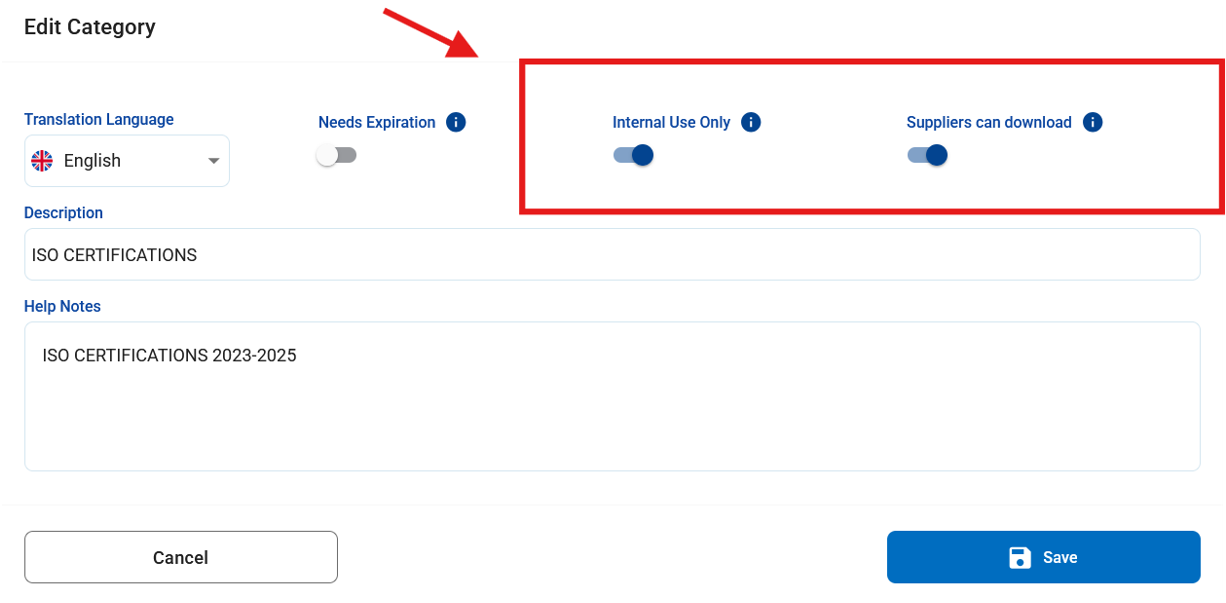
4. In the “Description” field please enter the name of the folder.
5. The “Help Notes” is a text field for internal use only and it is not visible to the suppliers.
6. Click Save to create the folder or Cancel to return without saving any changes.
For detailed instructions on managing folders, uploading documents, and editing or deleting them, please refer to the article:
👉 Folder and Document Management - Uploading, Editing & Deleting

