



 22
22
👉 This article is related to the following articles:
After creating a folder in the Documents → Documents Explorer section, you can manage the folder and its contents by clicking the three vertical dots (⋮) in its top-right corner.
From the pop-up menu, you have the following choices:
- Upload File
- Edit Category
- Delete
1. Upload File
The “Upload File” option allows you to add documents to a folder in the system, offering a simple and efficient way to store and organize information. The files you upload are available both and to suppliers, ensuring a shared database and immediate access to key information.
📺 See the related video/GIF for step-by-step guidance on how to upload a file to a folder.
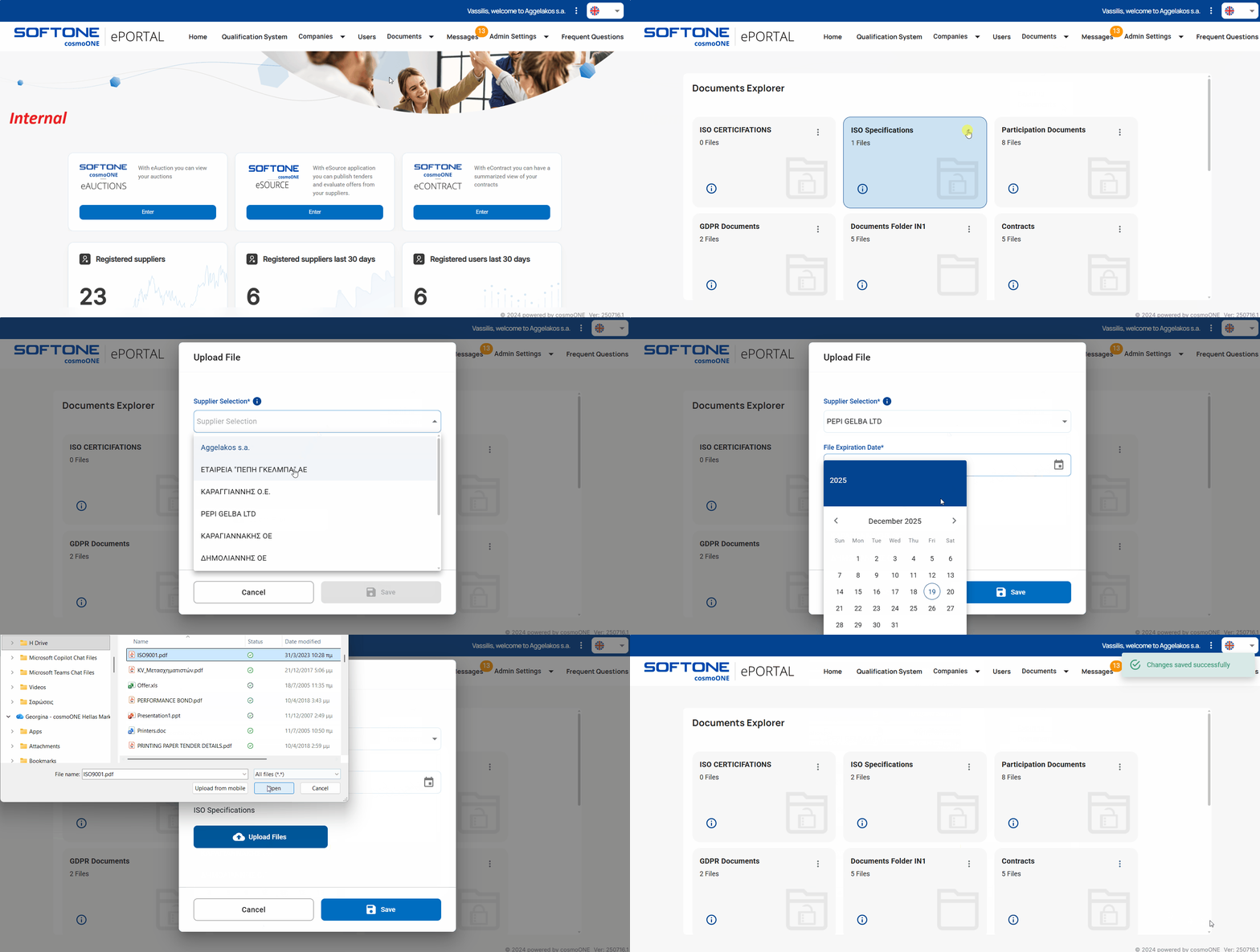
➤ Step by step instructions:
1. Go to Documents → Documents Explorer and locate the folder where you want to upload a file.
2. Click the three vertical dots (⋮) in the upper-right corner of the folder and select “Upload File”.
3. In the “Supplier Selection”, select the supplier you want the document to be linked with.
⚠️ If the folder contains documents to be included in a Questionnaire, you should select only your own entity in the “Supplier Selection” field when uploading a file. This ensures that the documents will be visible to all suppliers when they complete the questionnaire.
4. Choose a “File expiration date”, if required.
5. Click the “Upload Files” button to select a file from your computer. To remove an uploaded file, simply click the red trash can icon next to it.
6. Complete the procedure by clicking Save.
7. If you wish to upload additional files, please repeat the steps above.
⚠️ The maximum allowed size for each file is 20 MB, while the total size of all files must not exceed 100 MB.
2. Edit Category
The “Edit Category” option allows you to adjust a folder’s settings, including its name and other parameters, according to your needs.
📺 See the related video/GIF for step-by-step guidance on how to edit a folder.
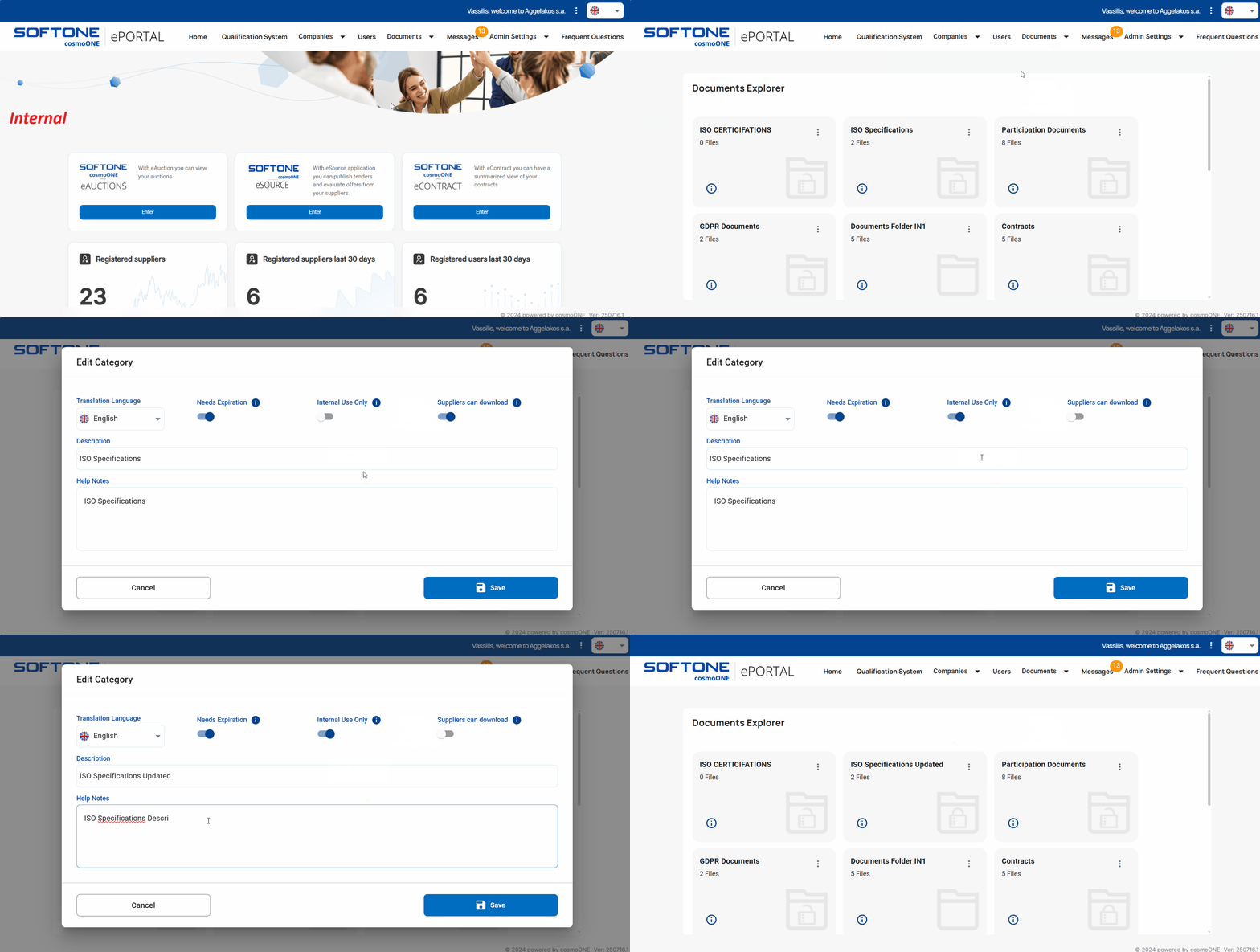
➤ Step by step instructions:
1. Go to the Documents → Documents Explorer, to locate the file that you wish to edit.
2. Select the three vertical dots (⋮) in the upper-right corner and select “Edit Category”.
3. Modify the required fields according to your needs. Details on the functionality of each field can be found in Step 3 of the article:
4. Click Save to confirm and apply your changes.
3. Delete
The “Delete” option allows you remove a folder from the system when it’s no longer needed or has been created by mistake.
📺 See the related video/GIF for step-by-step guidance on how to delete a folder.
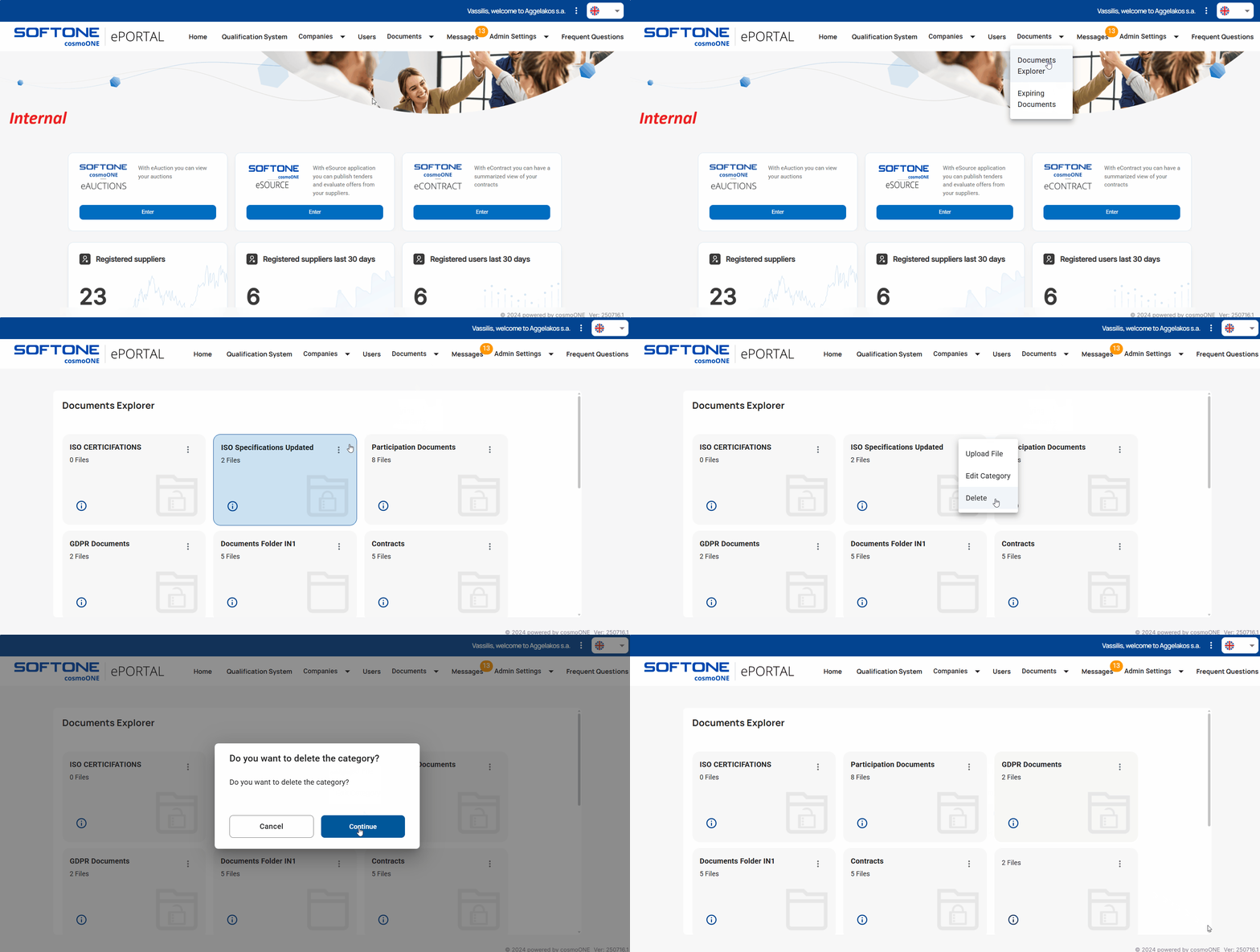
➤ Step by step instructions:
1.Go to the Documents → Documents Explorer menu, to locate the folder that you wish to delete.
2 Click the three vertical dots (⋮) in the upper-right corner and select “Delete”.
3. In the confirmation pop-up window please select Continue to complete the action or Cancel to abort it.

